

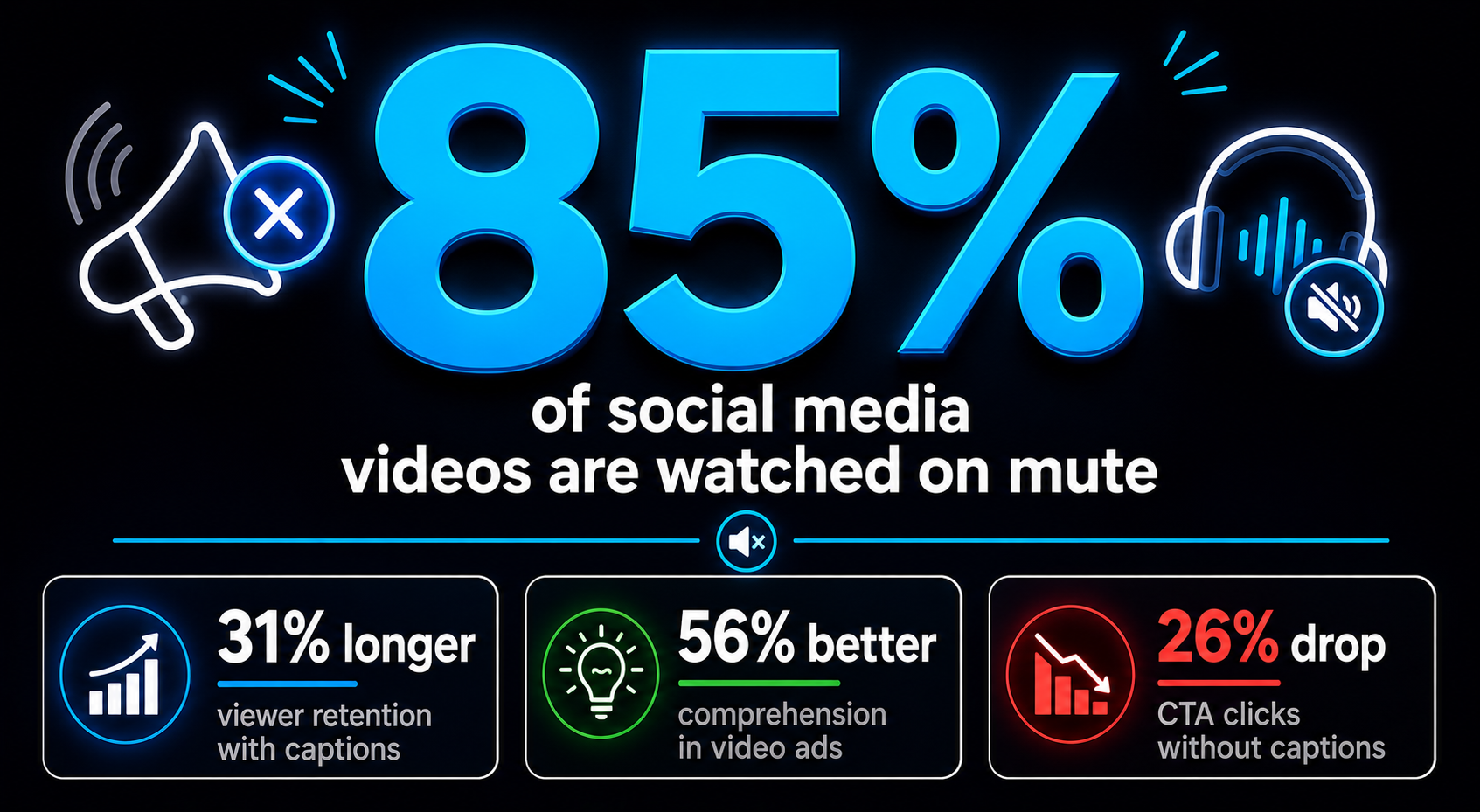
85% of social media videos are watched on mute. Not occasionally — consistently, across every platform, across every audience. If your video requires sound to be understood, you are already losing most of your viewers before they have heard a single word. Automatic video captions fix this. This guide shows you how to add them in under 5 minutes using AIClips Captions Studio.
The numbers behind captions are not subtle. Videos with captions retain viewers 31% longer. Sharethrough research found that adding captions to video ads increases comprehension by 56%. An A/B test by Instapage found that removing captions caused CTA clicks to drop 26%. This is not a nice-to-have — for any creator posting on Instagram, YouTube, or LinkedIn, captions are infrastructure.
| What it does | Automatically transcribes your video audio, generates timed captions, and exports the final video with captions burned directly into the footage. |
| Tool on AIClips | Captions Studio — available inside app.aiclips.net |
| Caption styles | 20+ templates — bold social, minimal, karaoke, news ticker, gradient, and more |
| Language support | English, Hindi, and regional Indian languages |
| Processing time | 60–90 seconds for a 60-second clip |
| Cost | Available on all plans from ₹349/month |
Why Captions Matter More Than Most Creators Realise
The 85% muted viewing statistic gets cited a lot, but the implications are worth sitting with. 80% of people who use captions do not have a hearing impairment — they are watching in public, in bed, at work, or somewhere they cannot or do not want to play sound. Your audience is reading your video as much as they are watching it.
For Indian creators specifically, captions carry an additional advantage: reach across language boundaries. A Hindi creator posting captioned video on Instagram reaches Marathi, Tamil, and Telugu viewers who can follow the captions even if the spoken Hindi is not their first language. For a creator building an all-India audience, that is real distribution expansion at zero extra cost.
The accessibility argument runs both ways too. Adding auto subtitles makes content accessible to viewers with hearing impairments — a user group that is systematically underserved by Indian content creators and represents a genuine audience gap to fill.
Manual Captions vs AI Subtitle Generator — The Time Difference
| Approach | Time for 60-Second Video | Accuracy | Cost |
|---|---|---|---|
| Manual typing in editor | 25–40 minutes | As accurate as you type it | Your time |
| SRT file upload from external tool | 10–15 minutes (transcribe + upload) | 85–90% (needs review) | ₹0–500/month external tool |
| AIClips Captions Studio (auto) | Under 3 minutes | 90–95% for clear audio | Included in plan |
For a creator posting 5 videos per week, manual captioning takes 2–3 hours weekly. The ai subtitle generator brings that to under 15 minutes. For a team managing multiple creators or brand accounts, the difference compounds significantly.
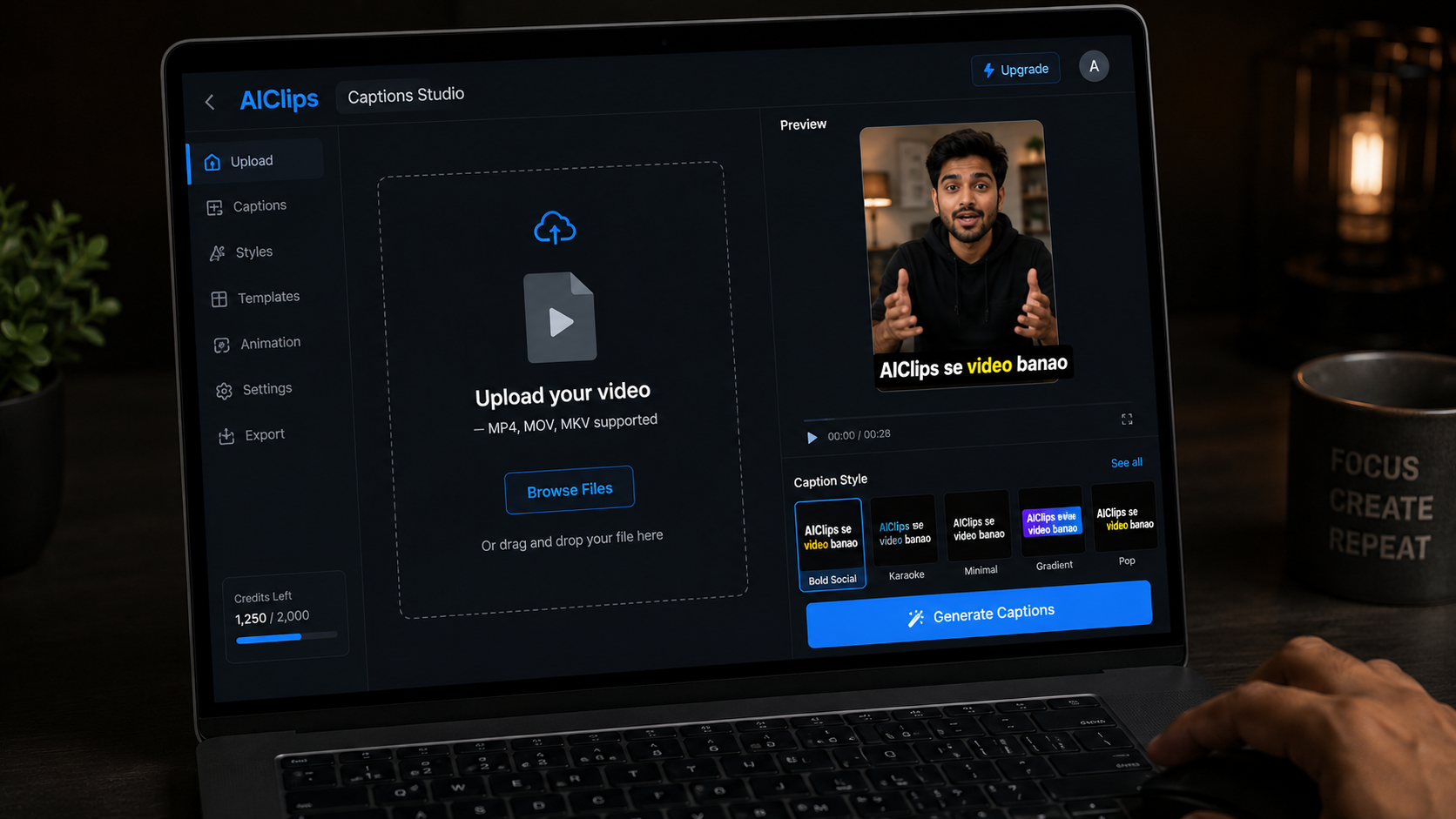
Upload Your Video to AIClips Captions Studio
Go to app.aiclips.net → Captions Studio.
Upload your video file. MP4, MOV, and MKV are all supported. For best transcription accuracy, the audio in your video should be:
- Clear — no significant background noise during speech
- At a consistent volume — speaking too quietly in parts causes missed words
- One speaker at a time if possible — overlapping speech reduces accuracy
If your video has background music under the voiceover, the accuracy drops noticeably — particularly for quieter consonants and regional language content where audio isolation is more critical. Either reduce the music volume in your video before uploading, or use AIClips’ Audio Cleanup tool first to isolate the voice track.
Review the AI Transcription
After upload, the ai subtitle generator processes the audio and returns a timestamped transcript. This typically takes 60–90 seconds for a 60-second clip.
Read through the full transcript before moving to styling. Do not skip this step — fixing a wrong word in the transcript takes 5 seconds. Fixing a burned-in wrong word after export means starting over.
Common transcription errors to watch for:
- Brand names and proper nouns. “AIClips” might be transcribed as “AI Clips” or “AI Claps.” Fix these first — they are the most visible errors.
- Numbers and prices. “₹349” might appear as “349 rupees” or just “349.” Standardise how numbers appear across all captions.
- Hindi and English code-switching. Hinglish transcription is the area where most AI subtitle generators still struggle. Words in the middle of a switch — where a Hindi word gets the English phoneme mapping — need review.
- Short connecting words. “Toh,” “aur,” “lekin” in Hindi are frequently missed or mistranscribed in Hinglish content. Scan the transcript specifically for these.
For pure Hindi content, accuracy is 88–92% for clear audio. For Hinglish content (mixed Hindi-English), expect 82–88%. Budget an extra 2 minutes of review time for mixed-language content.
Choose Your Caption Template
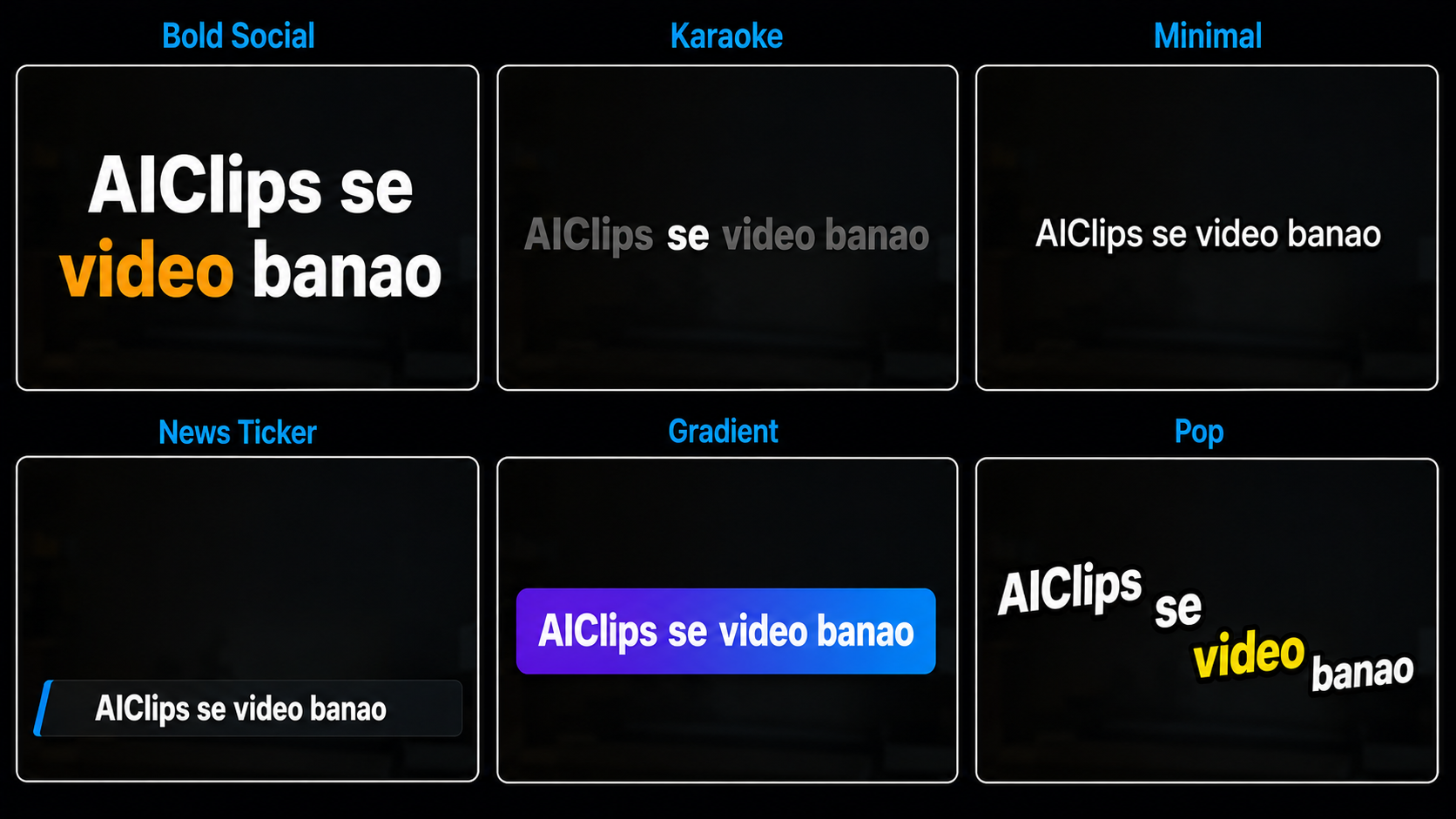
Captions Studio offers 20+ caption styles. The choice matters more than most creators assume — the wrong style can make a professional video look amateurish, and the right style can make a phone-recorded video look polished.
Caption Styles by Content Type
Bold Social
Large, high-contrast text with coloured word highlights. Best for Reels and Shorts where captions need to be readable mid-scroll.
Karaoke
Each word highlights as it is spoken. Strong retention effect — viewers follow along word by word. Best for music, emotional content, and motivational videos.
Minimal
Clean white text, no background box, subtle drop shadow. Works for brand videos, talking-head content, and anything where the caption should not compete with the visual.
News Ticker
Bottom-of-screen text bar. Works for educational content, explainers, and any video where the speaker’s face should dominate the frame.
Gradient
Colour gradient background behind text. Visually striking — good for lifestyle, fashion, and travel content where aesthetics matter as much as readability.
Pop
Animated text that pops in word by word. High energy — matches fast-cut Reels and product reveal content. Avoid for long-form or educational video.
| Content Type | Recommended Style | Why |
|---|---|---|
| Instagram Reels / Shorts | Bold Social or Karaoke | High readability at small sizes, keeps viewer engaged in first 3 seconds |
| YouTube tutorial | Minimal or News Ticker | Caption should support the content, not compete with it |
| Brand commercial | Minimal or Gradient | Aesthetics-first — the caption should feel part of the design |
| Motivational / emotional content | Karaoke | Word-by-word highlighting matches emotional rhythm of speech |
| Hindi / regional language content | Bold Social | Devanagari and other scripts need more horizontal space — bold, large text reads better than compressed small text |
| LinkedIn / professional | Minimal | Professional context requires restrained caption design |
Customise Fonts, Colours, and Timing
After selecting a template, you can adjust three main parameters: font choice, text colour, and line timing.
Font Choice
For English content, bold sans-serif fonts (similar to Montserrat Bold or Inter Black) read best on mobile at small sizes. For Hindi and regional language content, the font must support the relevant Unicode range — Devanagari, Tamil, or Telugu script fonts. Captions Studio includes fonts with full Indian language support.
Text Colour
High contrast is non-negotiable. White text on dark content, dark text on light content. The most common mistake is using coloured text (yellow, orange, pink) that looks good on a neutral background but disappears when the background changes mid-video. If your video has a changing background, use white text with a dark drop shadow or semi-transparent background box.
Line Timing — The Detail Most People Skip
By default, the ai subtitle generator splits your transcript into caption lines at sentence boundaries. This is correct most of the time. But check for cases where a line break splits a phrase awkwardly — for example, splitting “AIClips” onto a new line, or breaking in the middle of a number. Adjust individual line boundaries manually for any caption that reads awkwardly when the previous line disappears.
For Karaoke style, verify that word-level timing is accurate at the 10–15% fastest and slowest moments of your speech — these are where AI timing is least accurate.
Export with Burned-In Captions
When your captions look correct and the styling is set, export the video. You have two export options:
Burned-in captions (hardcoded): The captions are permanently baked into the video file. Every viewer sees them — no subtitles toggle, no closed caption button. This is the correct option for Instagram Reels, YouTube Shorts, TikTok, and any platform where auto-subtitles are unreliable or disabled by default.
SRT file only: A separate subtitle file that platforms can display as closed captions. Useful for YouTube long-form where viewers can toggle subtitles on/off, or for platforms that support external subtitle files.
For most Indian creator content in 2026, burned-in captions are the right choice. Platform-native subtitle systems — particularly Instagram’s — are inconsistent for Hindi and regional language content. Burning the captions in means your viewer sees them exactly as you designed them, regardless of their device or platform settings.
Multilingual Captions on AIClips
Captions Studio supports Hindi transcription and output alongside English. For mixed Hindi-English content (Hinglish), the tool handles both scripts within the same caption track.
For content where you want captions in a different language than the spoken audio — for example, Hindi captions on an English-language video, or English captions on a Hindi video — the workflow is:
- Generate captions normally from the original audio
- Export the SRT file
- Use AIClips AI Content tool to translate the SRT text
- Re-import the translated SRT into Captions Studio
- Apply your caption style and export with the translated captions burned in
This workflow takes 5–8 additional minutes but produces a version of your video that is fully accessible to an audience that does not speak the original language. For a Hindi creator wanting to reach Tamil or Bengali viewers, this is a genuine distribution tool. Full walkthrough in the Regional Indian Language AI Videos guide.
Captions Studio vs Other Auto Subtitle Tools
| Tool | Hindi Support | Caption Styles | Burned-In Export | Cost |
|---|---|---|---|---|
| AIClips Captions Studio | ✓ Yes | 20+ | ✓ Yes | Included in plan (₹349+/month) |
| VEED.io | Limited | 20+ | ✓ Yes | $18/month (~₹1,500) — USD only |
| Submagic | Limited | 10+ | ✓ Yes | $17/month (~₹1,416) — USD only |
| CapCut (free) | ✓ Yes | Limited free tier | ✓ Yes | Free (with watermark on some styles) |
| YouTube auto-captions | ✓ Yes | None (platform display only) | ✗ No | Free — but not burned-in |
For Indian creators paying in INR and needing Hindi support with burned-in export, AIClips Captions Studio is the most cost-effective option. VEED and Submagic charge in USD with no INR payment option — and their Hindi support is inconsistent for Hinglish content specifically.
CapCut is a reasonable free alternative for English content. For Hindi and regional language content at production quality, Captions Studio’s dedicated Indian language training makes a visible difference in transcription accuracy.
Frequently Asked Questions
How accurate is the AIClips AI subtitle generator for Hindi?
What is the difference between burned-in captions and SRT captions?
Can I add captions in Hindi to an English video?
How long does it take to add automatic video captions to a 60-second Reel?
Which caption style works best for Hindi Reels?
Does Captions Studio work with AI-generated voiceovers from AIClips?
Add Captions to Your Videos on AIClips
Automatic video captions with 20+ styles, Hindi support, and burned-in export. Starts at ₹349/month.
Try AIClips Captions Studio →