

Kling 3.0 is the model that finally made AI video stop looking soft and washed out. It was the first to generate native 4K, not upscaled, and the difference on a big screen is obvious. This Kling 3.0 tutorial walks you through it end to end — modes, prompts, settings, and the mistakes that quietly burn your credits — so you can get a clean cinematic clip on your first proper try.
You can run Kling 3.0 from India today inside AIClips, alongside 460 other models, for ₹349/month with UPI. No US-only waitlist, no foreign card. Let us make your first clip.
| What it is | Kuaishou’s flagship AI video model, launched 4 February 2026. The first to produce native 4K video, with strong motion and synced audio. |
| Resolution | Up to native 4K at 30–60fps, with 16-bit HDR output. Draft at 1080p, render final at 4K. |
| Modes | Text-to-Video, Image-to-Video, Motion Control, and multi-shot storyboards. |
| Clip length | 3–15 seconds per generation. 5–7 seconds is the sweet spot for quality. |
| On AIClips | ₹349/month Creator plan, UPI supported. Free credits available to test first. |
What Kling 3.0 Actually Does
Kling 3.0 landed on 4 February 2026 and reset the bar for AI video. The headline is native 4K at up to 60fps, generated directly rather than upscaled from a smaller render. It also produces synced audio and holds motion together far better than earlier models, which is where most AI video used to fall apart.
There are a few modes worth knowing. Text-to-Video builds a clip from a written prompt. Image-to-Video animates a still you upload. Motion Control lets you paint or direct movement, and storyboards stitch multiple shots into one sequence. For this tutorial we will focus on the two you will use most: Text-to-Video and Image-to-Video.
What You Need Before You Start
Not much. An AIClips account, a clear idea of the shot you want, and optionally a starting image if you are going the Image-to-Video route. If you do use a base image, 1K to 2K resolution is plenty — the model produces its own output resolution, so you do not need a 4K source.
Open AIClips, sign in, and select Kling from the video model list. UPI handles payment, and the free credits let you practise before committing.
Step 1: Choose Text-to-Video or Image-to-Video
This choice sets everything that follows. Pick Text-to-Video when you are creating something from scratch and want Kling to generate the whole scene. Pick Image-to-Video when you already have a look you want to keep — a product shot, a character portrait, a generated still — and you only need to add motion.
Image-to-Video is the more reliable of the two for consistency. The model treats your image as an anchor, preserving the identity, layout, and any text in it, then introduces movement on top. If a specific face or product has to stay exactly right, start from an image.
Step 2: Write a Prompt Like a Director
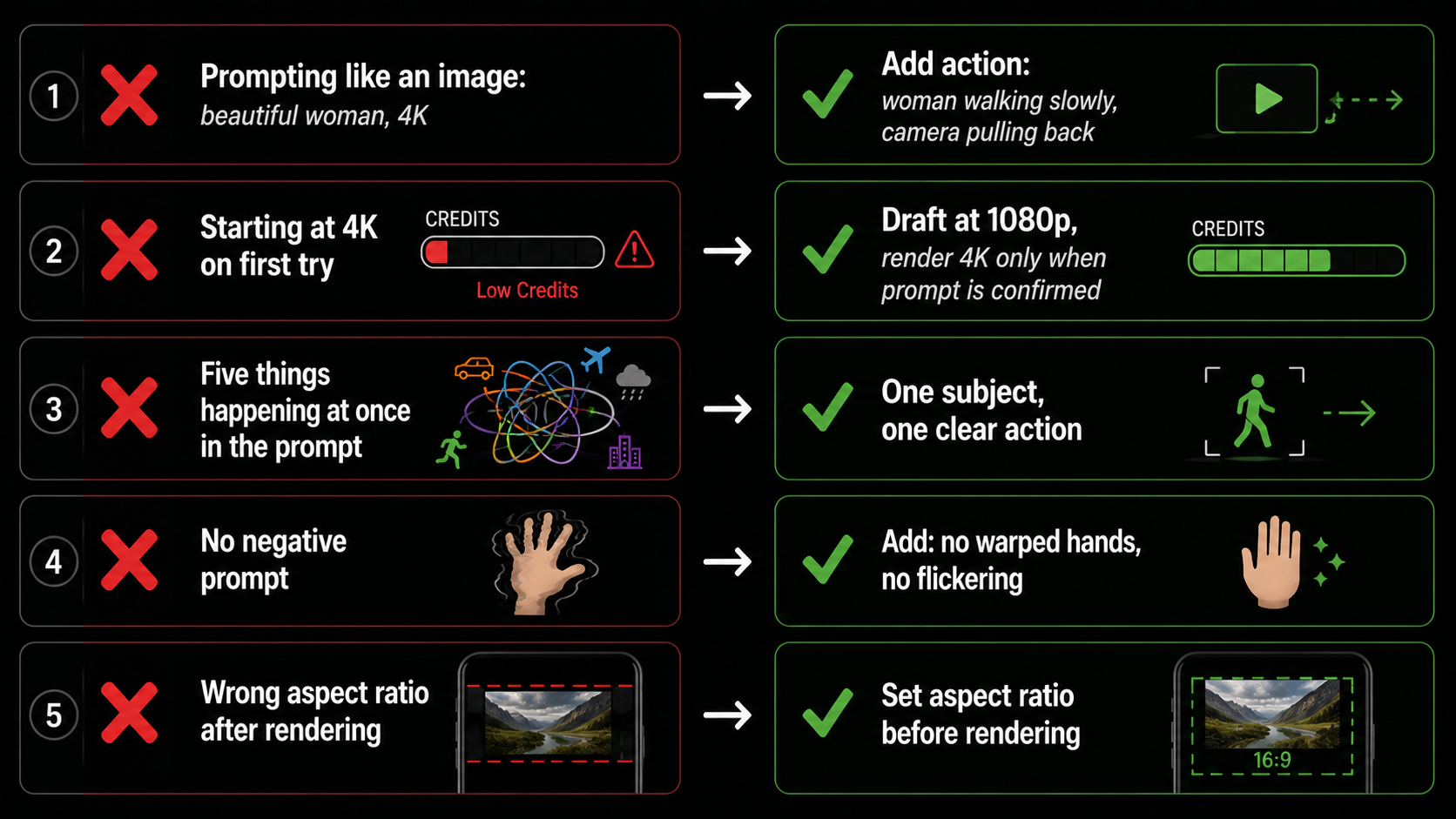
This is the part everyone gets wrong. If you prompt it the way you prompt an image generator — “beautiful woman, 4k, highly detailed” — you get a gorgeous frozen frame with no life in it. Video needs instructions about what happens, not just what things look like.
Think like a director of photography. Describe the subject, then the action, then the camera move, then the light. One subject doing one clear thing beats five things happening at once. The biggest mistake is trying to cram a whole film into a single prompt.
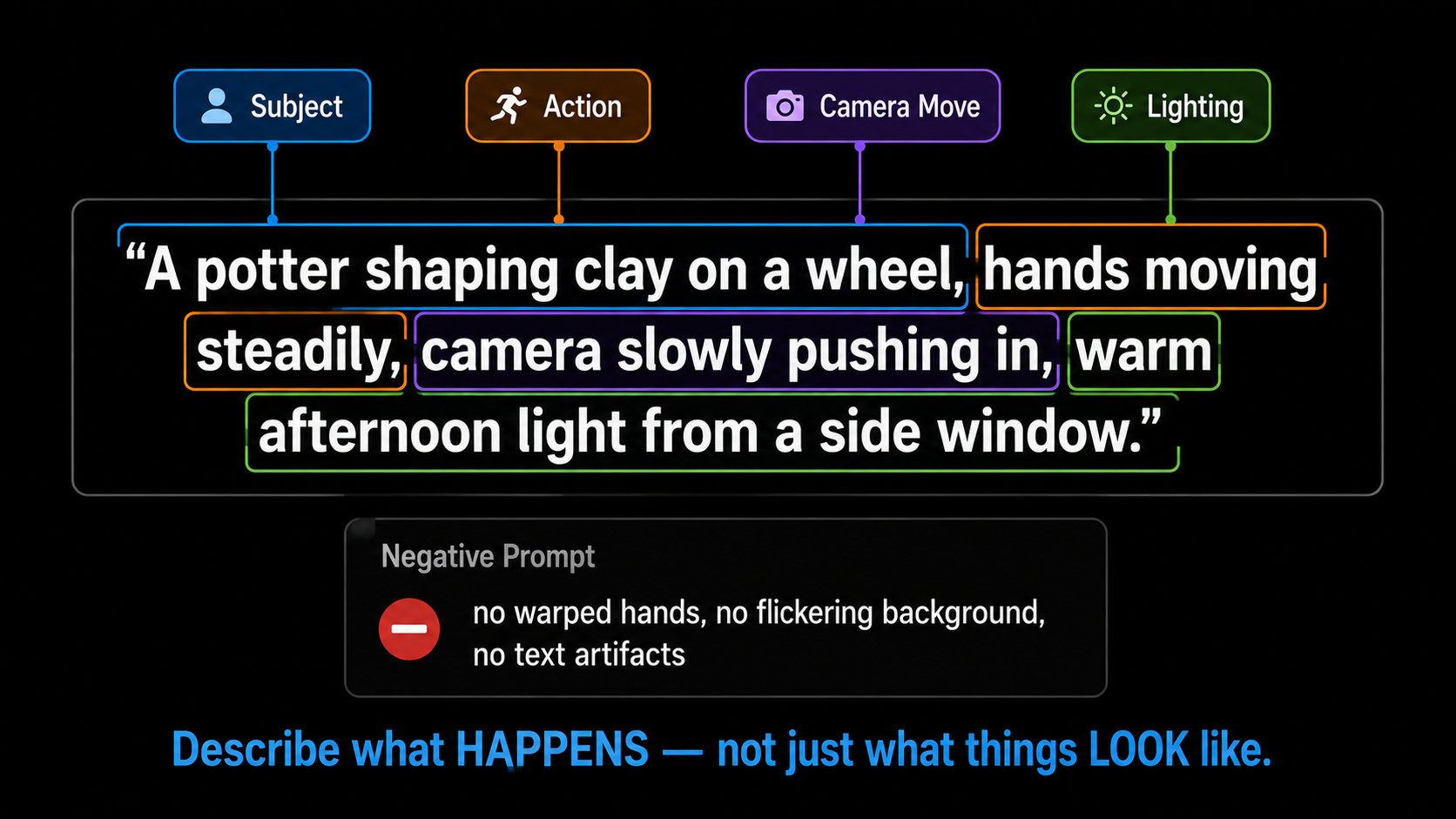
Negative prompts help too. Tell the model what to exclude — “no warped hands, no flickering background, no text artifacts” — and you will cut down the most common failures before they happen.
Step 3: Dial In Your Settings
Settings decide both quality and how fast your credits disappear. Here is the sensible default for each.
| Setting | Recommended | Why |
|---|---|---|
| Resolution | 1080p for drafts, 4K for final | 4K eats credits fast — only use it once the shot is right |
| Frame rate | 30fps standard, 60fps for fast motion | 60fps keeps dance, sport, and action smooth |
| Duration | 5–7 seconds | Best quality-to-credit ratio; longer clips drift more |
| Aspect ratio | 9:16 for Reels, 16:9 for YouTube | Match the platform before you render, not after |
Step 4: Generate, Review, and Iterate
Hit generate and give it a moment. A 5-second 1080p clip usually takes one to three minutes; a 15-second 4K render can take five to ten. Kling 3.0 outputs a standard MP4 you can drop straight into any editor or post to social.
When the result is close but not right, change one thing and regenerate. Be more specific, not longer. If the motion is wrong, rewrite the action line. If the look is off, adjust the lighting. Resist the urge to rewrite the whole prompt — you lose track of what actually fixed it.
3 Prompts That Work on Kling 3.0
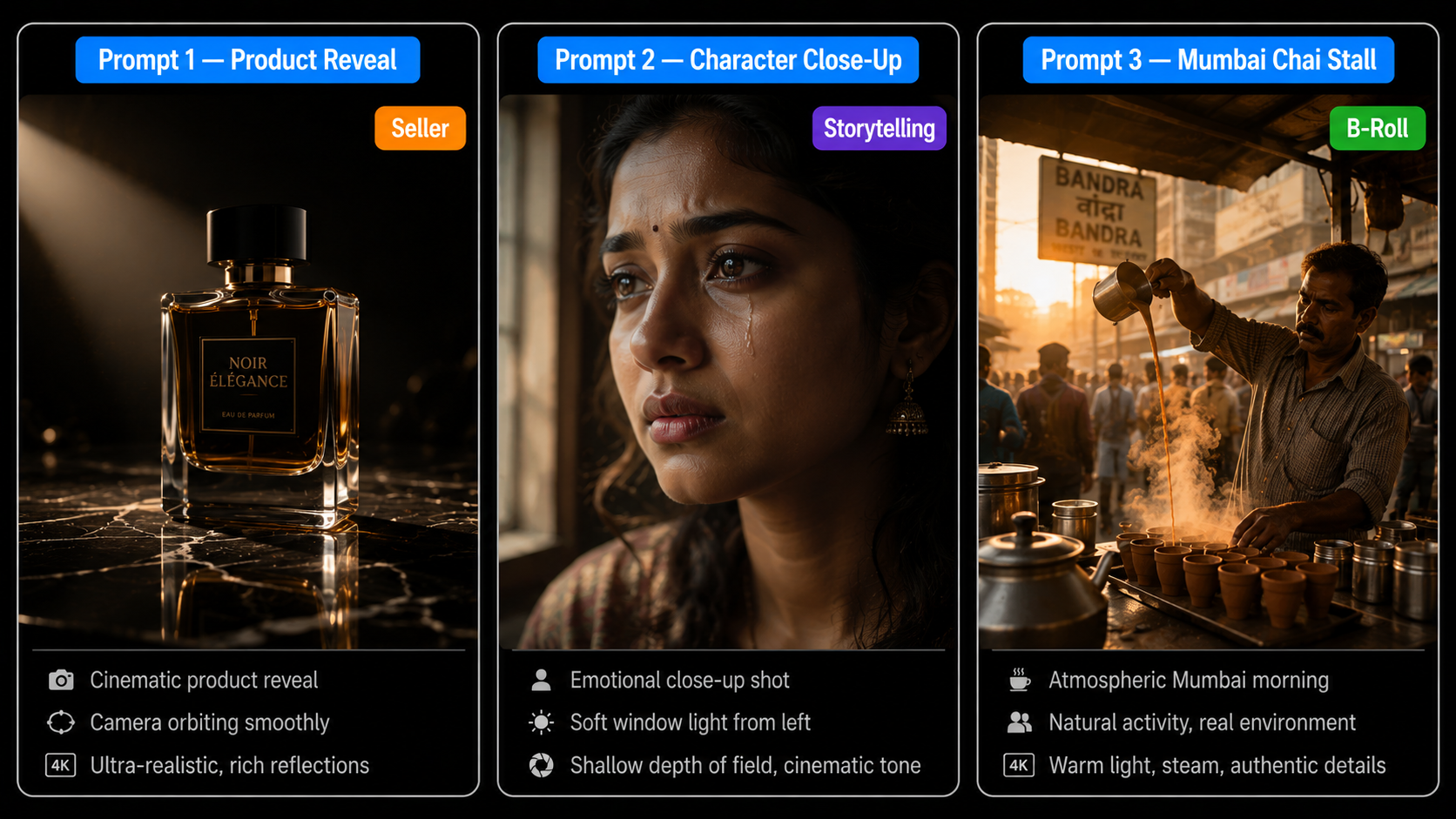
1. Cinematic Product Reveal SELLER
Orbit and tracking shots are where Kling shines for product work. Lead with the material and surface, then the camera move.
2. Character Close-Up with Emotion STORYTELLING
Slow, single-emotion shots read as genuinely cinematic. Keep the action small and let the light carry the feeling.
3. Atmospheric Indian Street Scene B-ROLL
For B-roll and establishing shots, atmosphere beats action. Steam, light, and small background movement do the work.
Common Mistakes (and Quick Fixes)
| Mistake | What goes wrong | Fix |
|---|---|---|
| Prompting like an image | Pretty but frozen clip | Describe motion and camera, not just looks |
| Starting at 4K | Credits gone in a few tries | Draft at 1080p, render final at 4K |
| Cramming the whole story in | Chaotic, drifting output | One subject, one clear action per clip |
| No negative prompt | Warped hands, flicker, artifacts | List what to exclude |
| Wrong aspect ratio | Awkward crop for the platform | Set 9:16 or 16:9 before rendering |
What This Costs in India
Kling 3.0 is the cheapest of the premium video models, which is a big part of why creators reached for it after Sora shut down. Here is the honest picture for an Indian creator.
| Option | Price | Notes |
|---|---|---|
| Kling free tier | ₹0 | Daily credits, good for learning and tests |
| AIClips Creator | ₹349 / month | Kling 3.0 plus 460 other models, UPI billing |
| Separate model subscriptions | $10–40 each | Foreign cards and per-tool fees stack up |
Running Kling 3.0 next to Veo, Seedance, and the rest on one rupee bill is the reason a single platform makes sense once you are producing regularly. For the full ranked list, see our best AI video generators guide.
Frequently Asked Questions
Is Kling 3.0 really native 4K?
How long does a Kling 3.0 video take to generate?
Should I use Text-to-Video or Image-to-Video?
Can Kling 3.0 add dialogue and lip-sync?
How do I use Kling 3.0 in India?
Make Your First 4K Clip on AIClips
Kling 3.0 plus 460 other AI models in one dashboard. INR pricing, UPI, from ₹349/month.
Try Kling 3.0 on AIClips →