

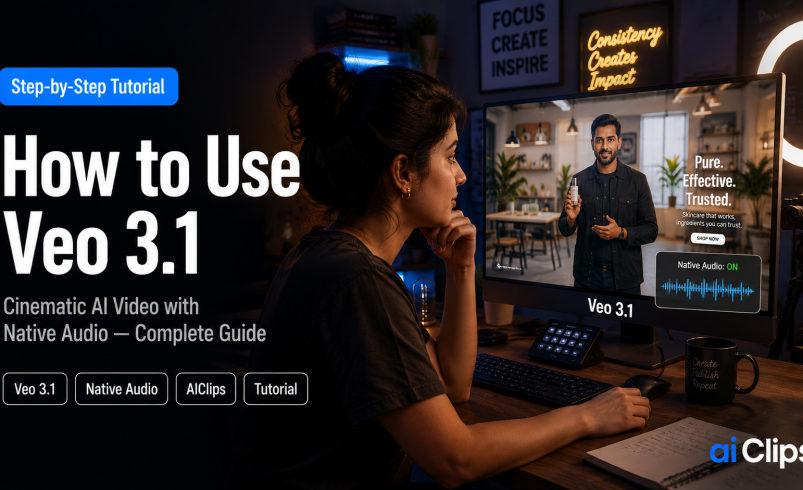

Most AI video tools hand you a beautiful, silent clip and leave you to add sound later. Veo 3.1 is different. Google’s flagship model generates synchronised dialogue, sound effects, and ambience together with the picture, which is why it has become the go-to for cinematic, broadcast-grade content. This tutorial walks you through it end to end, with the native-audio trick that most people get wrong.
You can run Veo 3.1 from India on AIClips, alongside Kling, Seedance, and 458 other models, for ₹349/month with UPI. Let us make a clip that actually sounds finished.
| What it is | Google DeepMind’s most advanced AI video model, built for photorealism and synchronised native audio. |
| The superpower | Native 48kHz audio — dialogue, sound effects, and ambience generated with the video, not added later. |
| Specs | 720p and 1080p output, clips of 4, 6, or 8 seconds, extendable to around 60 seconds, in 16:9 or 9:16. |
| Best for | Brand films, ads, dialogue scenes, and anything that needs to look and sound premium. |
| On AIClips | ₹349/month Creator plan, UPI supported, alongside Kling, Seedance, and more. |
What Makes Veo 3.1 Different
Veo 3.1 is Google DeepMind’s state-of-the-art video model, and the headline is sound. It generates native, synchronised audio at the same time as the visuals, so a clip arrives with matching dialogue, foley, and ambience built in. Add to that genuinely realistic physics, improved temporal consistency so objects stop warping over time, and far better lip-sync than the previous version, and you get output that looks and sounds like it came off a real set.
It also gives you proper directorial control through several modes: text-to-video, image-to-video, first-and-last-frame for transitions, ingredients-to-video for character consistency, and scene extension to lengthen a clip while the audio carries on.
Veo 3.1 vs Kling 3.0: Which Should You Use?
These two are the models most Indian creators reach for, and they are good at different things. Pick by the job.
| Veo 3.1 | Kling 3.0 | |
|---|---|---|
| Best at | Photorealism, native audio, dialogue | Motion, action, value for money |
| Audio | Synchronised dialogue and SFX | Multilingual audio |
| Resolution | 720p / 1080p | Native 4K |
| Use it for | Brand films, ads, talking scenes | Dance, sport, fast movement |
If you want the full Kling walkthrough, we covered it in the best AI video generators guide. For premium, sound-led work, Veo 3.1 is the pick.
What You Need Before You Start
An AIClips account, a clear idea of one shot, and optionally a reference image if you want to keep a face, product, or setting consistent. Open AIClips, sign in, and select Veo from the video model list. UPI handles payment, so no foreign card needed.
Step 1: Choose Your Mode
Start with text-to-video for a fresh scene, or image-to-video when you have a still you want to bring to life. For a multi-shot scene with the same character, use ingredients-to-video with reference images. For a smooth transition between two moments, use first-and-last-frame. Most clips start with text-to-video, so we will build from there.
Step 2: Write a Prompt with the 5-Ingredient Formula
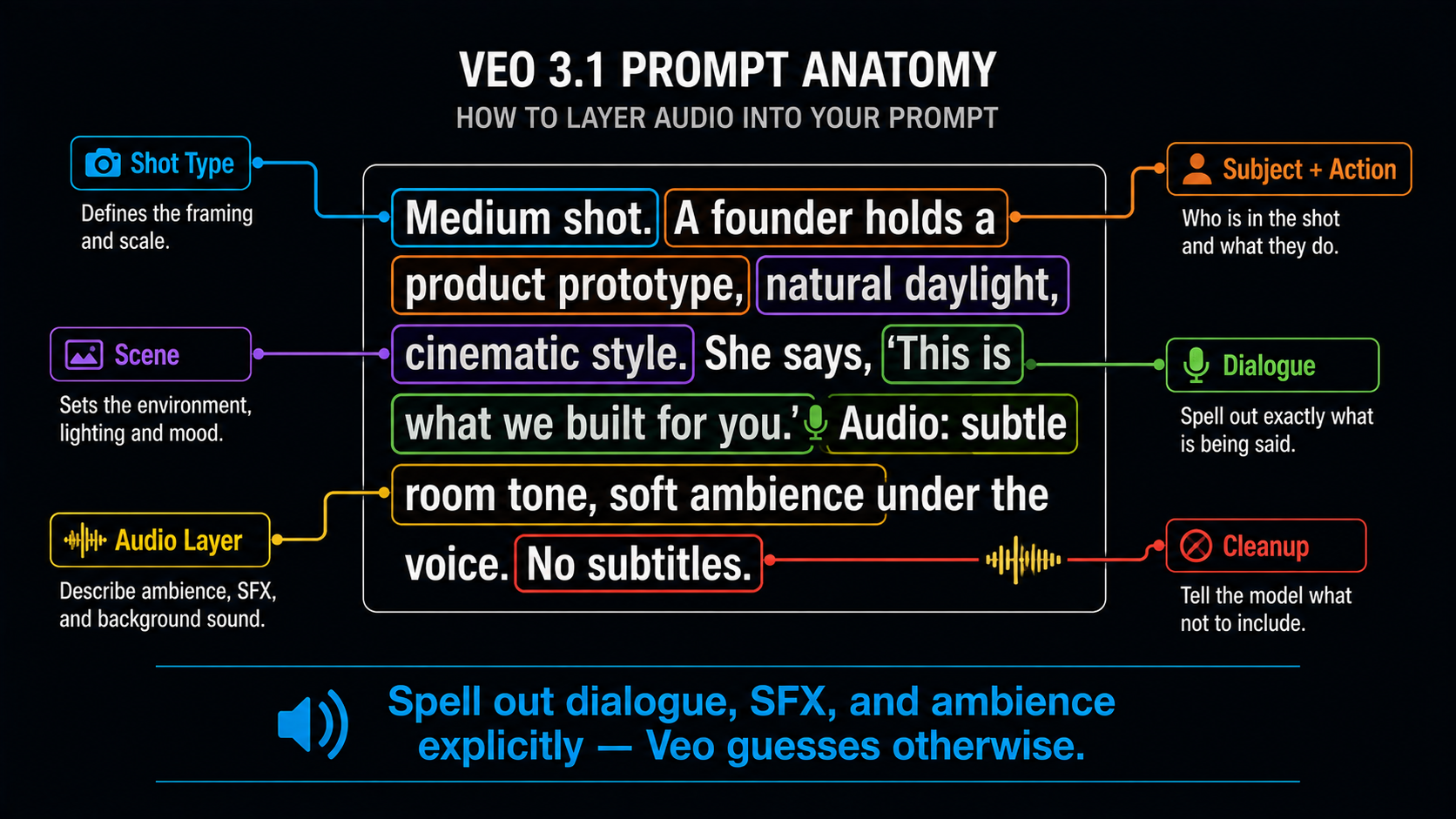
Veo was trained on cinematic footage, so it responds to film language far better than plain description. Structure every prompt with five ingredients: subject, action, scene, style, and audio.
| Ingredient | What to write |
|---|---|
| Shot type | Front-load it: “Close-up.” or “Wide shot.” not “a man in a close-up” |
| Subject + action | One clear subject doing one clear thing |
| Scene | Setting, time of day, lighting |
| Camera | One move only — dolly in, tracking shot, crane shot |
| Style | The look: cinematic, documentary, film noir |
Step 3: Direct the Audio (the Veo Superpower)
This is the step that separates a finished clip from a silent one. Veo does not add good sound by default — it guesses unless you tell it exactly what to hear. Spell out the audio as its own layer.
Put dialogue in quotation marks and name the speaker and tone. Label sound effects and ambience clearly, for example “SFX: glass clinking” or “Ambient: distant temple bells and street chatter.” Keep audio directives next to the action they belong to rather than dumped at the end. When you want music, tell it to “duck under dialogue” so speech stays clear, and add “no subtitles, no on-screen text” to avoid unwanted captions.
Step 4: Set the Format and Generate
Pick your duration (4, 6, or 8 seconds), resolution (720p or 1080p), and aspect ratio (9:16 for Reels, 16:9 for YouTube) before you generate, since framing depends on it. Draft cheap and render expensive: test composition at a shorter length first, then render the final at full quality once the prompt is right. A short clip takes a couple of minutes.
Step 5: Extend and Refine
Eight seconds is short, but Veo can extend a clip while the audio continues naturally, building up to roughly a minute. This is cheaper and more reliable than generating a long clip in one go. Change one thing per regeneration — if the motion is off, fix the action line; if the sound is wrong, fix the audio layer.
3 Prompts That Work on Veo 3.1
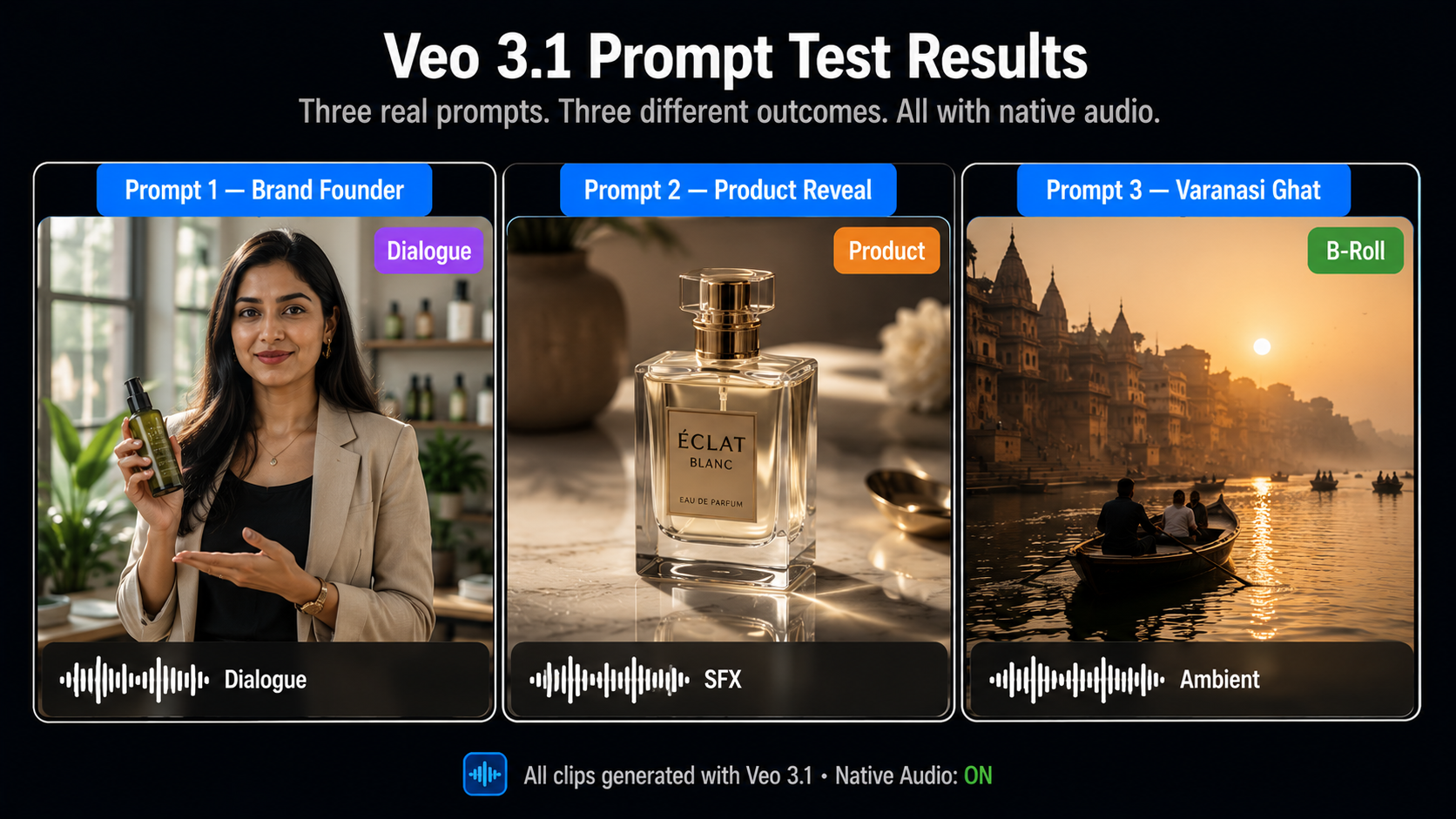
1. Cinematic Brand Founder DIALOGUE
Single speaker, clear line, quiet ambience under the voice. This is where Veo’s audio shines.
2. Product Reveal with SFX PRODUCT
SFX anchored to the visible action and a single camera move keep it clean and convincing.
3. Atmospheric Indian Street AMBIENT
For B-roll, the ambience does the work. Concrete sounds beat a generic “background noise” request.
Common Mistakes (and Quick Fixes)
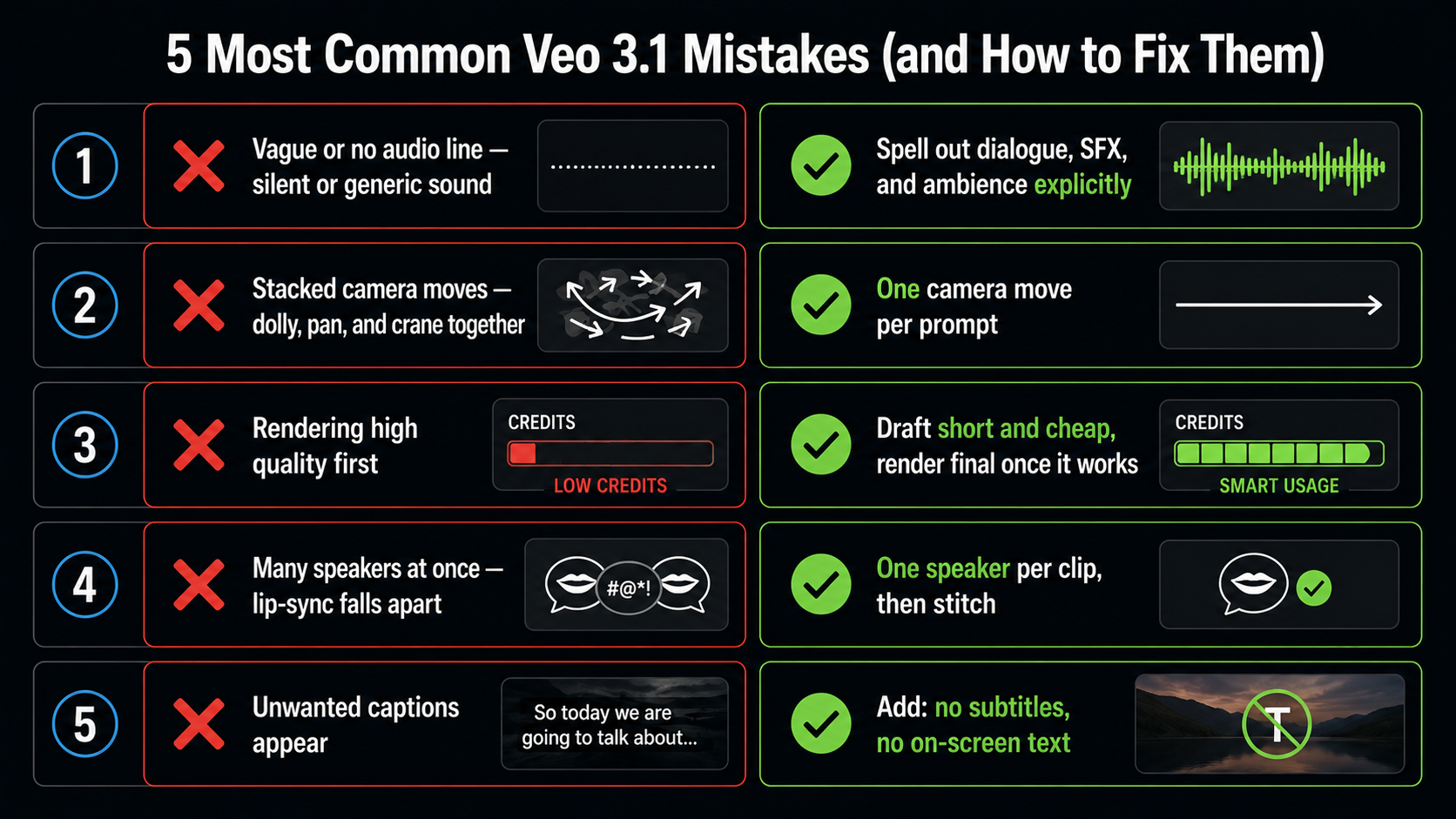
| Mistake | What goes wrong | Fix |
|---|---|---|
| Vague or no audio line | Silent or generic sound | Spell out dialogue, SFX, and ambience explicitly |
| Stacked camera moves | Unstable, jittery output | One camera move per prompt |
| Rendering high quality first | Credits gone in a few tries | Draft short and cheap, render final once it works |
| Many speakers at once | Lip-sync falls apart | Generate one speaker per clip, then stitch |
| Unwanted captions | Random on-screen text | Add “no subtitles, no on-screen text” |
What This Costs in India
| Option | Price | Notes |
|---|---|---|
| Free trials | ₹0 | Limited credits, good for first tests |
| AIClips Creator | ₹349 / month | Veo 3.1 plus Kling, Seedance, and more, UPI |
| Enterprise API access | $ per second | Waitlists, dollar billing, foreign card |
Running Veo 3.1 next to Kling and Seedance on one rupee bill lets you pick the right model per shot — Veo for the talking, premium moments, Kling for the motion. For the full lineup, see our best AI video generators guide.
Frequently Asked Questions
Does Veo 3.1 generate audio automatically?
How long can a Veo 3.1 clip be?
Is Veo 3.1 better than Kling 3.0?
Why does my Veo 3.1 dialogue sound off?
Can I use Veo 3.1 in India?
Make Cinematic Video on AIClips
Veo 3.1 plus Kling, Seedance, and 458 other models in one dashboard. INR pricing, UPI, from ₹349/month.
Try Veo 3.1 on AIClips →