

The average Indian creator uses 6–8 separate tools to produce a single Reel. Script in one tab. Voiceover in another. Video generation somewhere else. Music from a fourth platform. Captions from a fifth. By the time you export, you have spent 90–120 minutes and logged into four different billing portals. This AI content creation workflow shows you how to do the same thing in 30 minutes without leaving AIClips.
This is not a theoretical guide. Every step below maps directly to a real tool inside app.aiclips.net. The times are realistic — not best-case marketing claims. First time through, some steps will take longer. By the third Reel, 30 minutes is genuinely achievable.
| Total time | 30 minutes from blank page to downloadable video |
| Platform | AIClips — all steps done inside app.aiclips.net |
| Output | 60–90 second Reel ready for Instagram, YouTube Shorts, or TikTok |
| What you need | AIClips account (₹349/month), your topic, and nothing else |
| Tools used | AI Content writer, Realistic Voiceovers or ElevenLabs, Seedance 2.0, AudioGen, Captions Studio |
| Assembly | Final edit in CapCut (free) or your existing editor |
The Problem This Workflow Solves
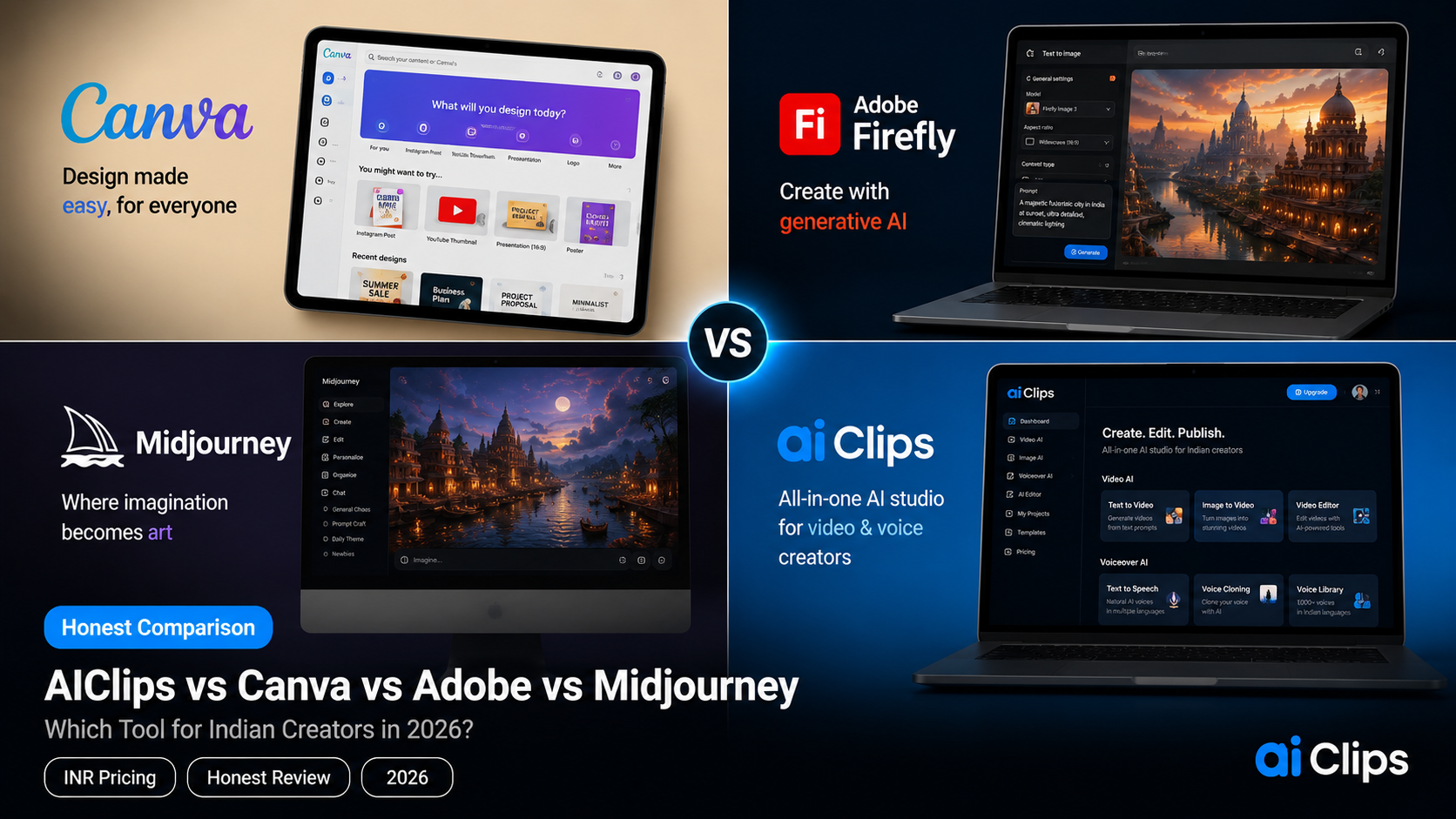
Most Indian creators are running a content stack that costs ₹8,000–15,000 per month across separate subscriptions — ChatGPT for scripts, ElevenLabs for voiceover, Runway or Pika for video, Canva for thumbnails, a separate music tool, a separate captions tool. Each tool has its own login, its own pricing model, its own export format.
The switching cost between these tools is where the time actually goes. It is not 90 minutes of creative work — it is 40 minutes of creative work and 50 minutes of downloading, uploading, reformatting, and logging back in.
This AI content creation workflow eliminates the switching cost. Everything runs inside AIClips. The output of one step feeds directly into the next. There is no downloading a voiceover, uploading it to a different platform, waiting for processing, then downloading again. You move forward in one place.
Before You Start — One Decision
Before the timer starts, decide your topic and platform. These two decisions change every step that follows.
- Topic: Be specific. “AI tools for creators” is too broad. “How to make a product video on your phone in 10 minutes” is a topic you can script in 5 minutes.
- Platform: Instagram Reels and YouTube Shorts use 9:16 vertical. YouTube standard uses 16:9. LinkedIn uses 1:1. This determines your video aspect ratio in Step 3.
- Language: Hindi, English, Marathi, Tamil? Decide before scripting — write the script in the language you will use for the voiceover.
For this walkthrough, the example topic is: “How to remove a video background without a green screen” — for Instagram Reels in Hindi.
The 30-Minute AI Reels Tutorial — Step by Step
Generate Your Script
Go to AIClips → AI Content tool. Type your topic as a prompt:
The AI returns a draft in about 20 seconds. Read it out loud immediately — not silently. If any sentence trips you up when spoken, rewrite it. Scripts that read smoothly on screen often sound unnatural spoken aloud.
For a 60-second Reel at a natural speaking pace, you need approximately 120–150 words. For 90 seconds, 180–220 words. The 75-word prompt above produces about 45–50 seconds of spoken audio — add a hook line if you want to push it to 60 seconds.
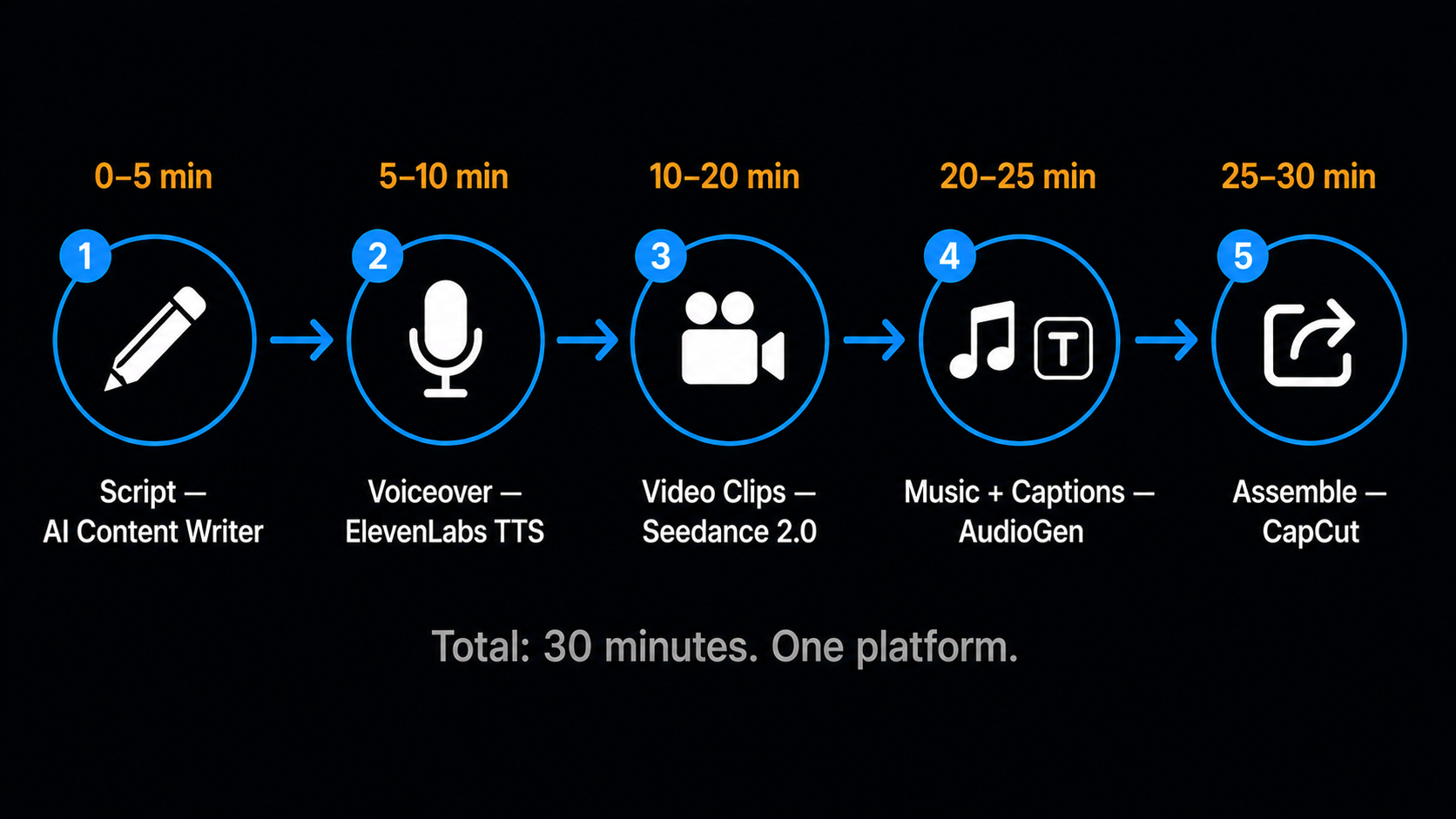
Time check: Script generation takes 20 seconds. Review and light editing takes 3–4 minutes. You are at 5 minutes.
Generate Your Voiceover
Paste your final script into the Realistic Voiceovers app or ElevenLabs TTS on AIClips. Select your language, voice profile, and style.
For the Hindi Reel example: Language → Hindi. Voice → Viraj or Anant (energetic, Reels-appropriate). Style → Conversational. Generation time: 15–30 seconds.
Listen to the full output before moving on. Check three things:
- Does it sound like a real person or like a robot reading a document?
- Are pauses landing where they should?
- Are any English words inside the Hindi script mispronounced?
If something is off, do not regenerate the full script. Find the specific line that sounds wrong, rewrite just that line with different punctuation or sentence structure, and regenerate. Fixing one line takes 90 seconds. Regenerating the full voiceover takes 30 seconds. Do not start over from scratch.
Download the audio file when satisfied. Keep it open in the next tab — you will reference the duration when generating video clips.
Time check: Two voiceover generations plus review and download — 5 minutes. You are at 10 minutes.
Generate Your Video Clips
This is the longest step and the one with the most variance. Video generation takes 30–90 seconds per clip depending on the model and your credit plan. For a 60-second Reel, you need 4–6 clips of 10–15 seconds each.
Open the Video Generator and select Seedance 2.0 Fast (315 credits). Fast variant keeps generation times short while you are testing compositions.
Write 4–5 prompts, one per scene you need. For the background removal topic:
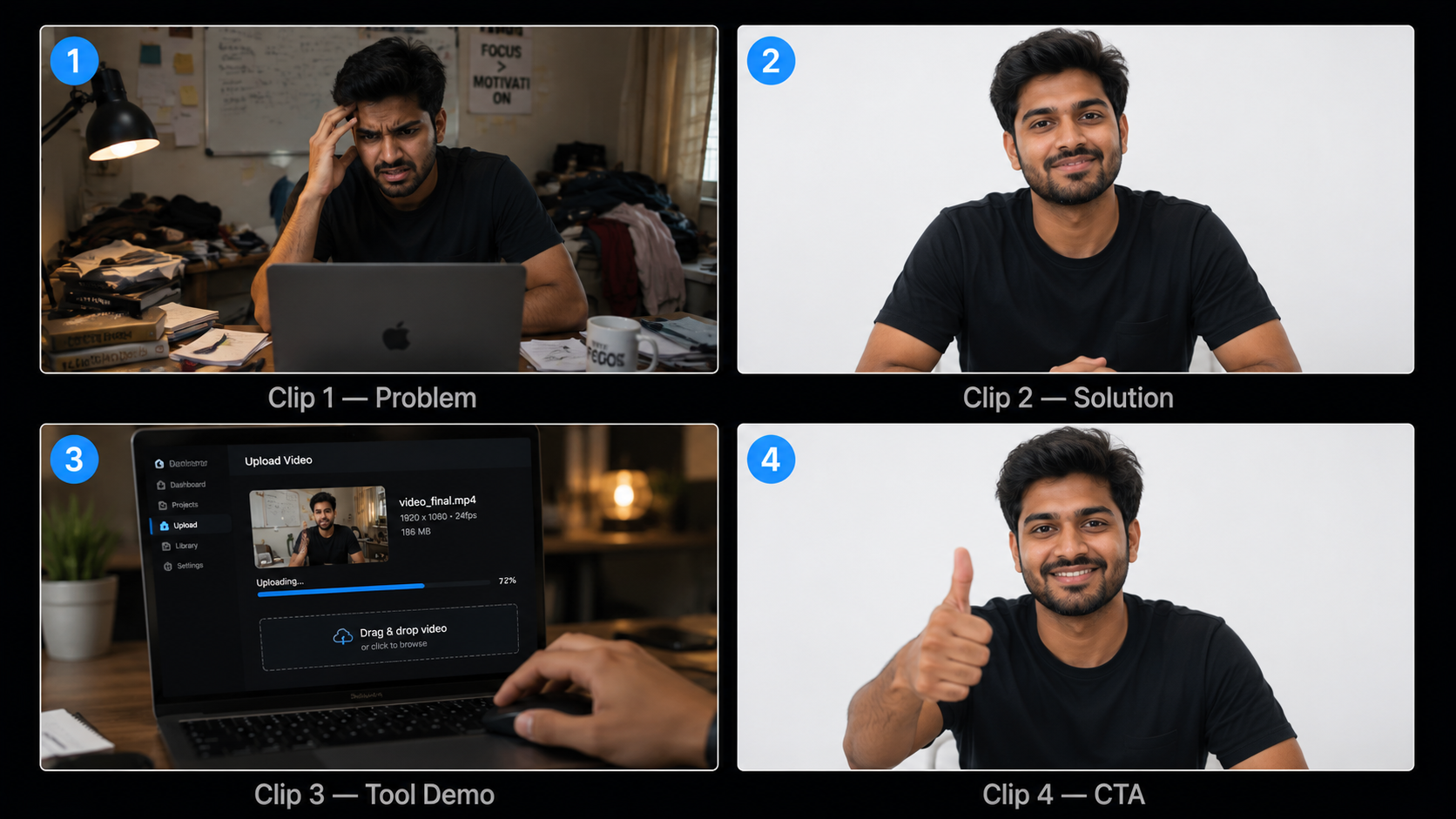
Generate all four in sequence using Fast mode. While each one processes, write the next prompt. You are not waiting — you are working in parallel.
Review each clip when it finishes. For this style of content, you need:
- Natural movement — no stiff, mannequin-like body language
- Clean background where specified
- Face direction appropriate for where captions will sit on screen
If a clip fails, re-roll once. If the second attempt also misses, edit the prompt and generate again. Do not spend more than one re-roll on any single clip — move to the next scene and come back.
Time check: 4 clips at roughly 60–90 seconds generation each, plus review and light iteration — 10 minutes. You are at 20 minutes.
Generate Music and Captions
Music (2 minutes)
Go to AIClips → AudioGen or Lyria 2 (Google’s music model). Describe the mood you need:
Generate one track. It takes 15–20 seconds. If it does not match the energy of your content, generate one more with adjusted description. Do not spend more than one retry here — the music is background, not the main event. A slightly imperfect track that fits the mood is better than spending 10 minutes finding the perfect one.
Captions (2 minutes)
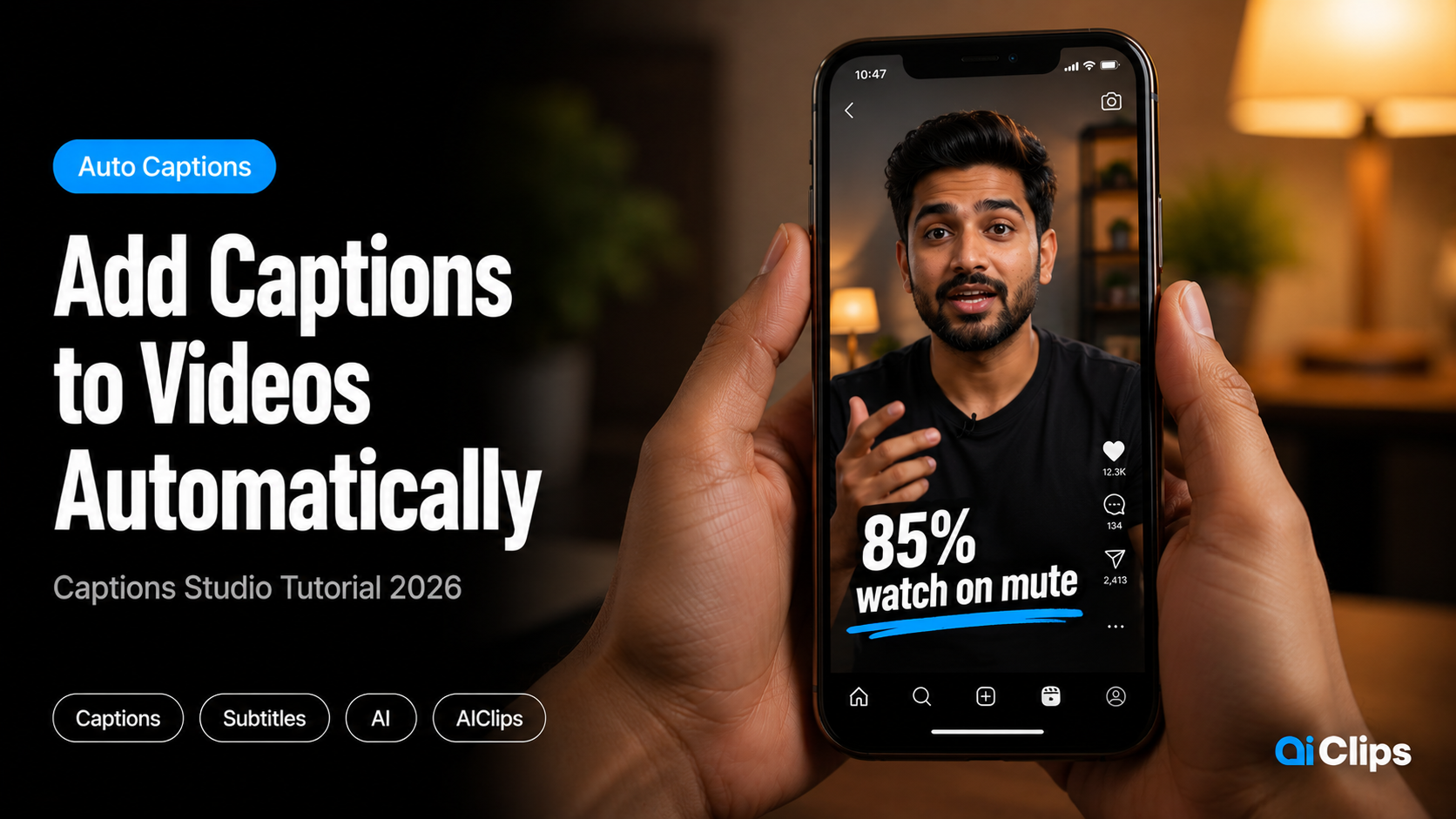
Once Captions Studio is live on AIClips, upload your voiceover audio file and select a caption style. The tool generates timed captions automatically. Pick a style appropriate for Reels — bold, high-contrast text that reads clearly when viewed at phone size with the sound off.
85% of Instagram Reels are watched without sound. Your captions are not a nice-to-have — they are the primary way most viewers will follow your content. If Captions Studio is not live yet, upload your voiceover to CapCut (free) after export and use its auto-caption feature.
Time check: Music generation + captions setup — 5 minutes. You are at 25 minutes.
Assemble and Export
Open CapCut (free, mobile or desktop). This is the final assembly step — you are not editing creatively here, you are assembling what you already made.
- Create a new project in 9:16 format
- Import your voiceover audio as the base track
- Import your 4 video clips and arrange them to match the audio pacing
- Import the music track and set it as background at 15–20% volume
- Import your captions file or use CapCut’s auto-caption as backup
- Preview the full Reel once
- Export at 1080p, 30fps
The assembly takes 3–4 minutes when your clips are already ready. You are not trimming footage, adding effects, or making creative decisions — those were made in the generation step. Assembly is just arranging pieces that already fit.
Time check: Assembly and export — 5 minutes. Total: 30 minutes. Reel is ready to post.
The Math — Traditional Workflow vs This AI Content Creation Workflow
| Step | Traditional Workflow | AIClips AI Workflow | Time Saved |
|---|---|---|---|
| Script writing | 30–45 min (blank page) | 5 min (AI draft + edit) | 25–40 min |
| Voiceover recording | 20–30 min (setup, record, edit) | 5 min (generate + review) | 15–25 min |
| Video footage | 60–90 min (film or source stock) | 10 min (generate 4 clips) | 50–80 min |
| Background music | 15–20 min (find royalty-free track) | 2 min (generate custom) | 13–18 min |
| Captions | 10–15 min (manual sync) | 2 min (auto-generate) | 8–13 min |
| Assembly and export | 20–30 min | 5 min | 15–25 min |
| Total | 155–230 min | 29–30 min | 2–3 hours per Reel |
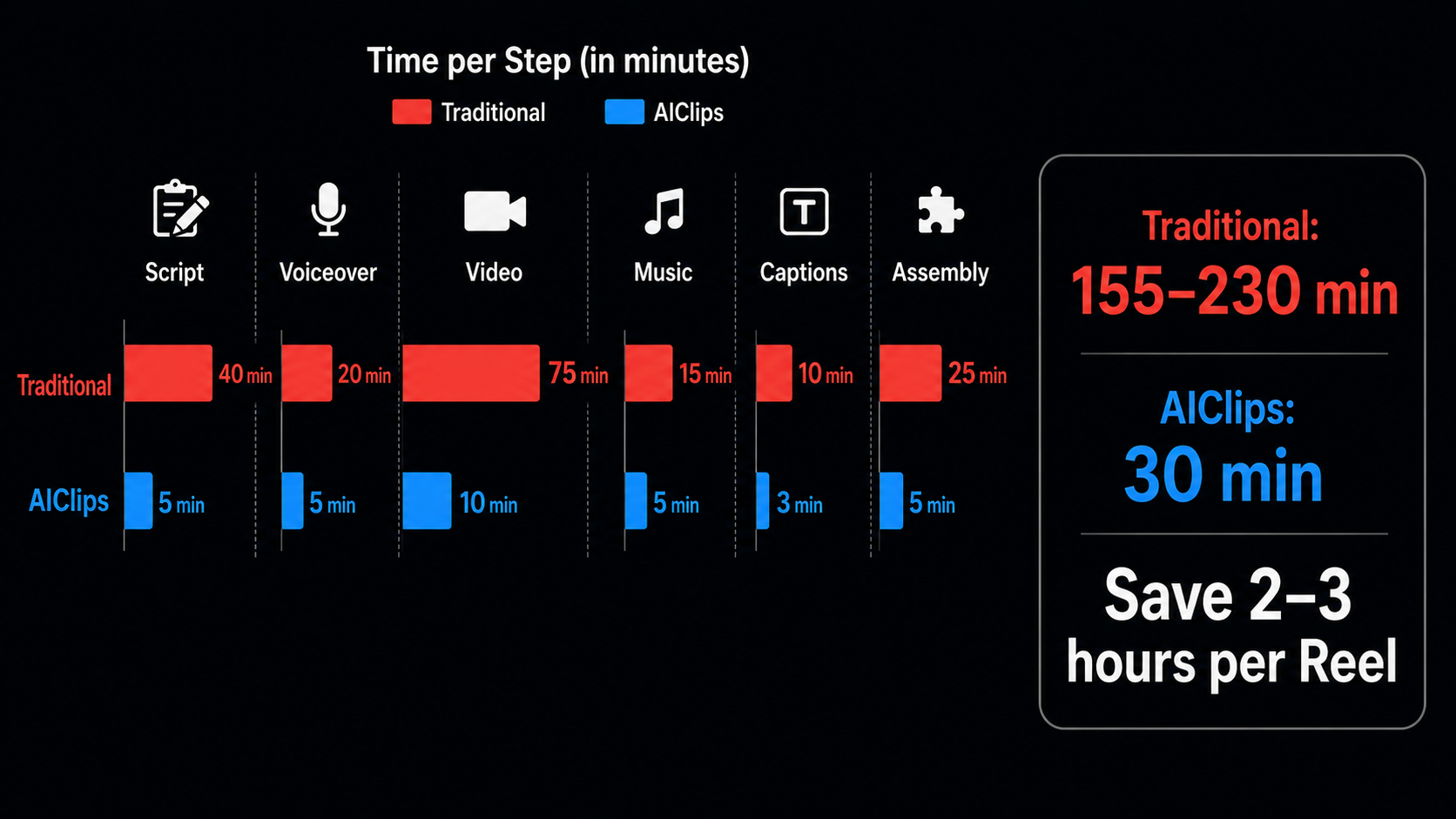
For a creator posting 5 Reels per week, this end to end ai video workflow saves 10–15 hours per week. That is time that either goes back to your life or goes into creating 5 more Reels.
What This Workflow Does Not Replace
Honest answer: the 30-minute create reel with ai workflow produces a good Reel. It does not automatically produce a viral Reel.
What the algorithm actually rewards in 2026: hook strength in the first 1.5 seconds, completion rate above 50%, saves and shares. None of these are determined by your tools — they are determined by your topic choice, your hook writing, and how well you understand your specific audience.
AI handles the production. You still handle the strategy. The best use of the time you save from this ai video workflow is researching what your audience actually wants to watch — not producing more content at the same level.
Complete Tool Map — What Each AIClips Tool Does in This Workflow
| Step | AIClips Tool | Alternative if Needed |
|---|---|---|
| Script generation | AI Content writer | ChatGPT or Claude (external) |
| Hindi voiceover | Realistic Voiceovers or ElevenLabs TTS | Minimax Speech 2.6 |
| Video generation | Seedance 2.0 Fast | Kling Fast, Wan 2.2 (cheaper) |
| Background removal | Background Remover app | Bria RMBG 2.0 for stills |
| Music generation | Lyria 2 or Minimax Music | Cassetteai Sound Effects |
| Captions | Captions Studio (when live) | CapCut auto-captions (free) |
| Final assembly | CapCut or your existing editor | DaVinci Resolve (free desktop) |
For a deeper guide on any individual step, each tool has its own walkthrough: Seedance 2.0 video generation, Hindi voiceover AI, background removal, and the captions guide.
Frequently Asked Questions
Does this AI content creation workflow work for Hindi Reels?
Can I really create reel with AI in 30 minutes?
What is the best video model to use for this workflow?
Does AIClips generate the music too?
Can I use this end to end ai video workflow for YouTube long-form content?
What does the AIClips Creator plan (₹349/month) actually cover in this workflow?
Try the Full Workflow on AIClips
Script. Voiceover. Video. Music. Captions. All in one platform. Starts at ₹349/month.
Start Your First Reel on AIClips →