
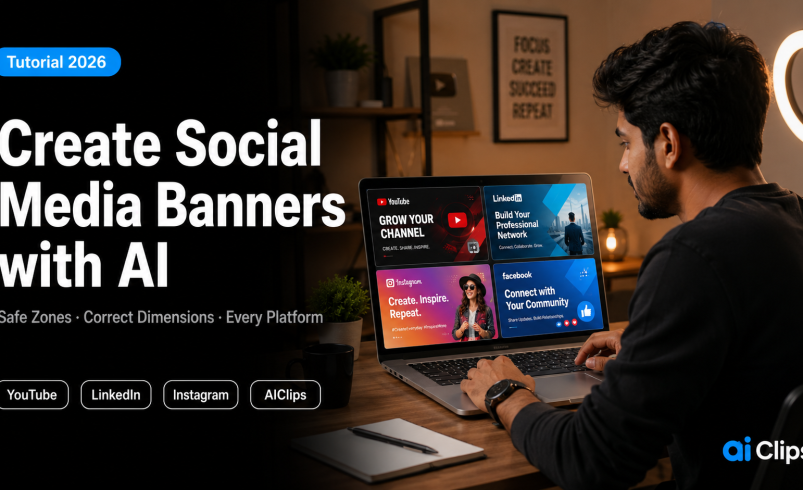

The most common banner mistake is not bad design — it is uploading a beautifully designed banner and watching YouTube or LinkedIn crop out the most important part. Platform safe zones are why this happens, and most creators only discover them after the first embarrassing upload. This guide shows you how to use an ai banner maker on AIClips to create social media banners on AIClips and how to set them up so nothing gets cropped on any device.
The AI banner generator in AIClips Social Banner Studio is built for creators who do not want to open a separate design tool every time they need a new banner. You describe what you want, the platform, and your brand colours — the tool generates the image at the correct dimensions with the correct safe zones already applied.
| What it does | Generates platform-specific social media banners at correct dimensions with AI. Handles YouTube channel art, LinkedIn covers, Instagram highlights, Facebook covers, and X profile banners. |
| Tool on AIClips | Social Banner Studio — available inside app.aiclips.net on all plans. |
| Key advantage | Pre-loaded with platform-specific dimensions and safe zones — no manually calculating pixel dimensions or guessing what gets cropped. |
| Cost | Available on all plans from ₹349/month. Unlimited on Agency plan (₹999/month). |
| Best for | YouTubers setting up or refreshing channel branding, LinkedIn personal and company profiles, Instagram highlight covers, D2C brand accounts. |
Why Banner Design Is a Hidden Time Sink
Banner creation sits at the intersection of two problems: it requires design skills most creators do not have, and the technical requirements are different for every platform. YouTube wants 2560 x 1440px with a 1546 x 423px safe zone. LinkedIn personal banners want 1584 x 396px. Instagram highlight covers want 1080 x 1080px. X profile headers want 1500 x 500px with the profile photo overlapping the bottom-left corner.
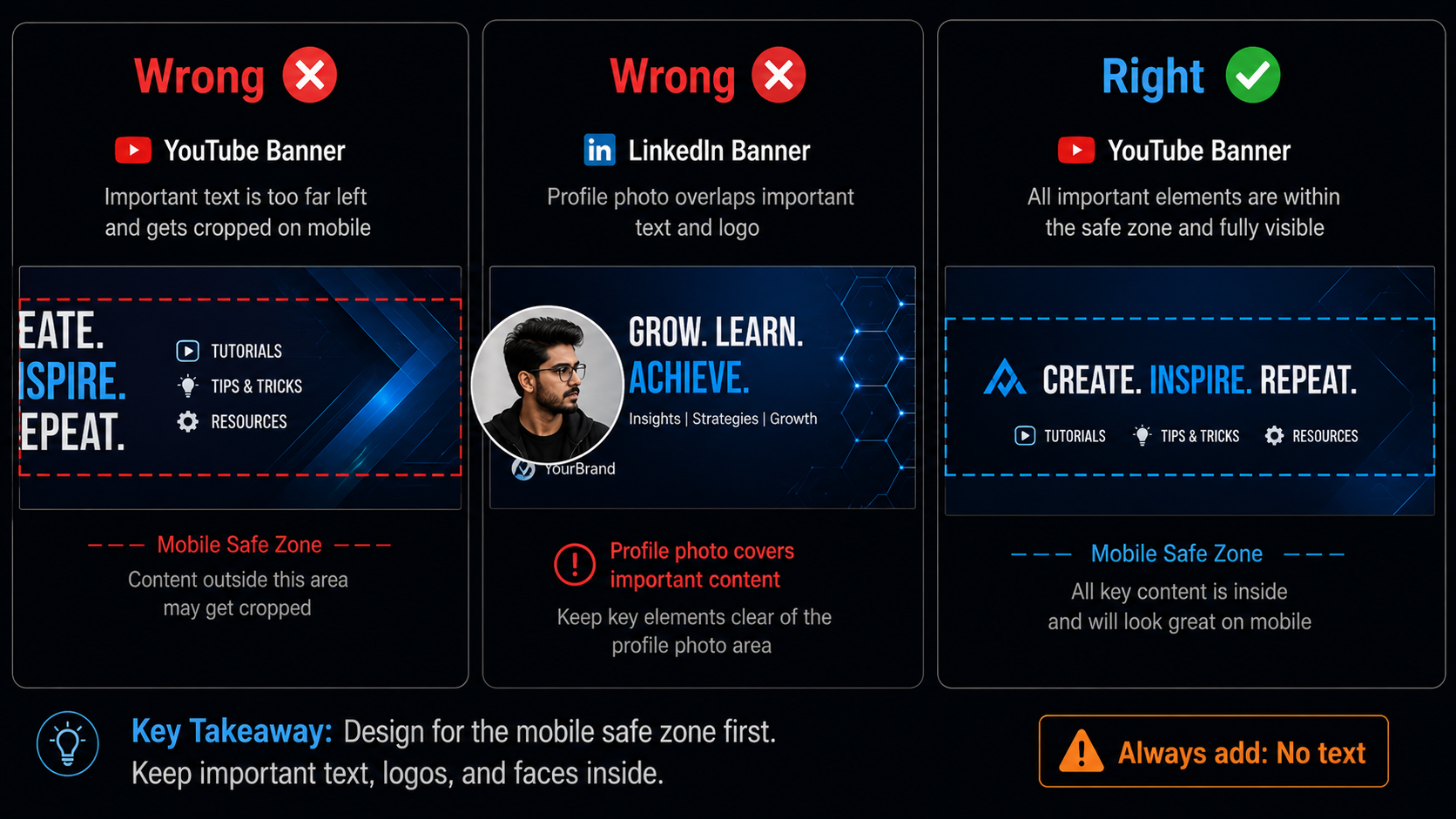
Get any of these wrong and the result ranges from slightly off to embarrassing. A YouTube banner without the safe zone considered looks perfect on desktop and has your channel name cropped off on mobile and TV. A LinkedIn banner with text near the bottom-left gets covered by your profile photo on desktop. These are not rare edge cases — they happen to every creator who designs a banner without knowing the platform-specific rules.
The social media banner AI in AIClips handles the technical specification problem automatically. When you select a platform, the canvas is set to the correct dimensions with the safe zone marked. You describe the visual style you want, and the AI generates within those constraints.
Platform Banner Specifications — 2026
Before you create anything, here are the current specs for every major platform. Hootsuite’s 2026 image sizes guide is the most frequently updated reference for these numbers.
| Platform | Banner Size | Safe Zone | Key Rule |
|---|---|---|---|
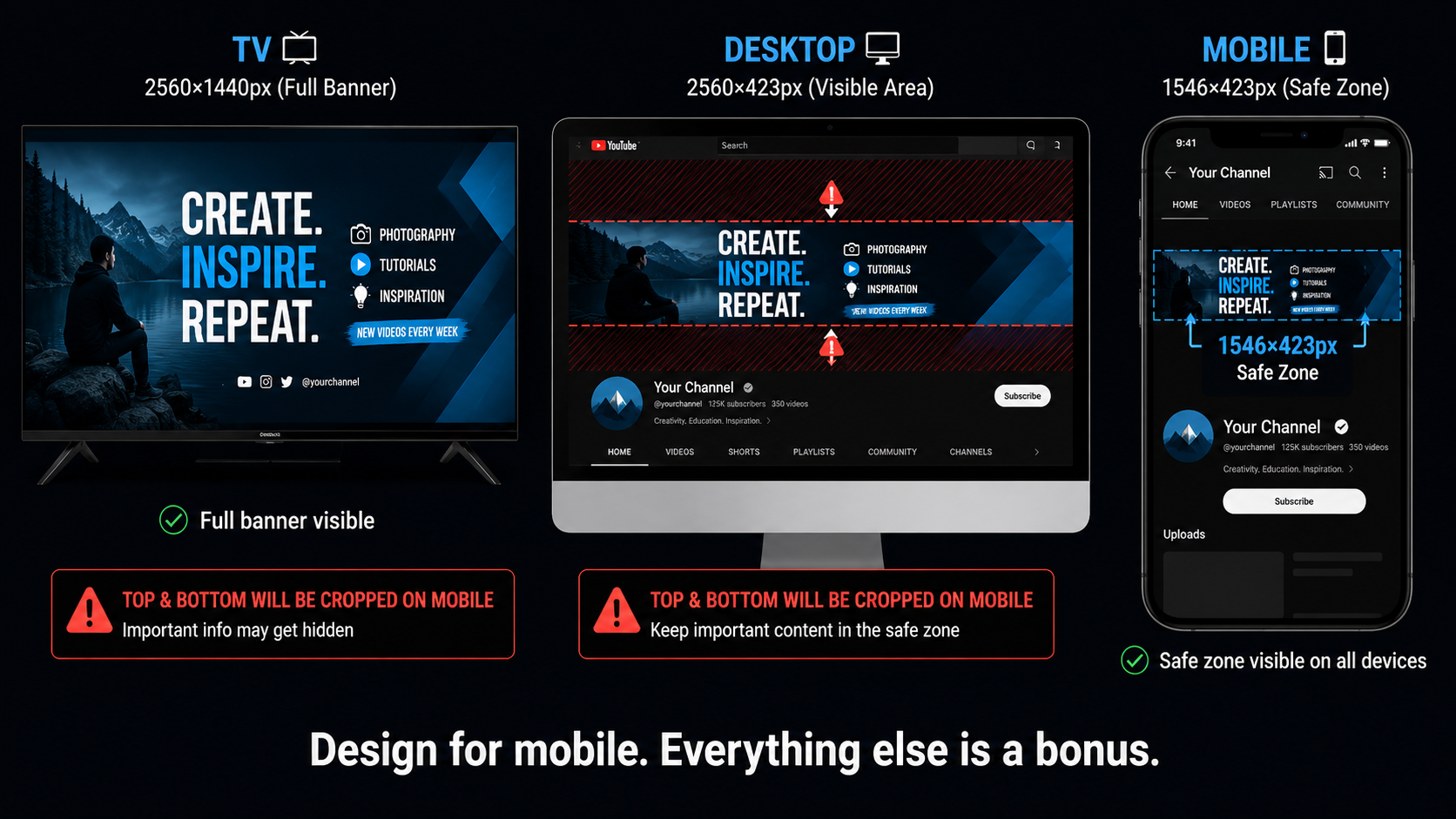
| YouTube Channel Art | 2560 × 1440px | 1546 × 423px (centre) | Anything outside the safe zone is cropped on mobile and TV. Keep all text and logos inside the 1546 × 423px centre rectangle. |
| LinkedIn Personal Banner | 1584 × 396px (4:1) | Avoid bottom-left corner | Profile photo overlaps the bottom-left. Keep text and logos in the right two-thirds of the banner. |
| LinkedIn Company Banner | 1128 × 191px | Centre area | Very short height — keep design simple with a single horizontal visual element. |
| Facebook Cover Photo | 851 × 315px | Centre horizontal strip | Profile photo overlaps bottom-left on desktop. Edges crop on mobile. |
| X (Twitter) Header | 1500 × 500px | Central 1500 × 576px | Profile photo overlaps bottom-left. Mobile crops to roughly 2.6:1. |
| Instagram Highlight Cover | 1080 × 1080px | Centre circle | Displays as a circle — keep your key element in the centre 600px diameter. |
Select Your Platform in Social Banner Studio
Open AIClips → Apps → Social Banner Studio. The first selection is the platform.
Selecting the platform does three things automatically: sets the canvas to the correct pixel dimensions, marks the safe zone overlay so you can see what is protected, and adjusts the AI generation prompt context so the output is optimised for that specific format.
If you need the same banner concept across multiple platforms — a brand launch, for example, that needs a YouTube banner, LinkedIn banner, and Facebook cover on the same day — generate for each platform separately. Do not resize a YouTube banner for LinkedIn. The safe zone positions and aspect ratios are different enough that a resized banner almost always looks wrong on the destination platform.
Write Your Banner Prompt
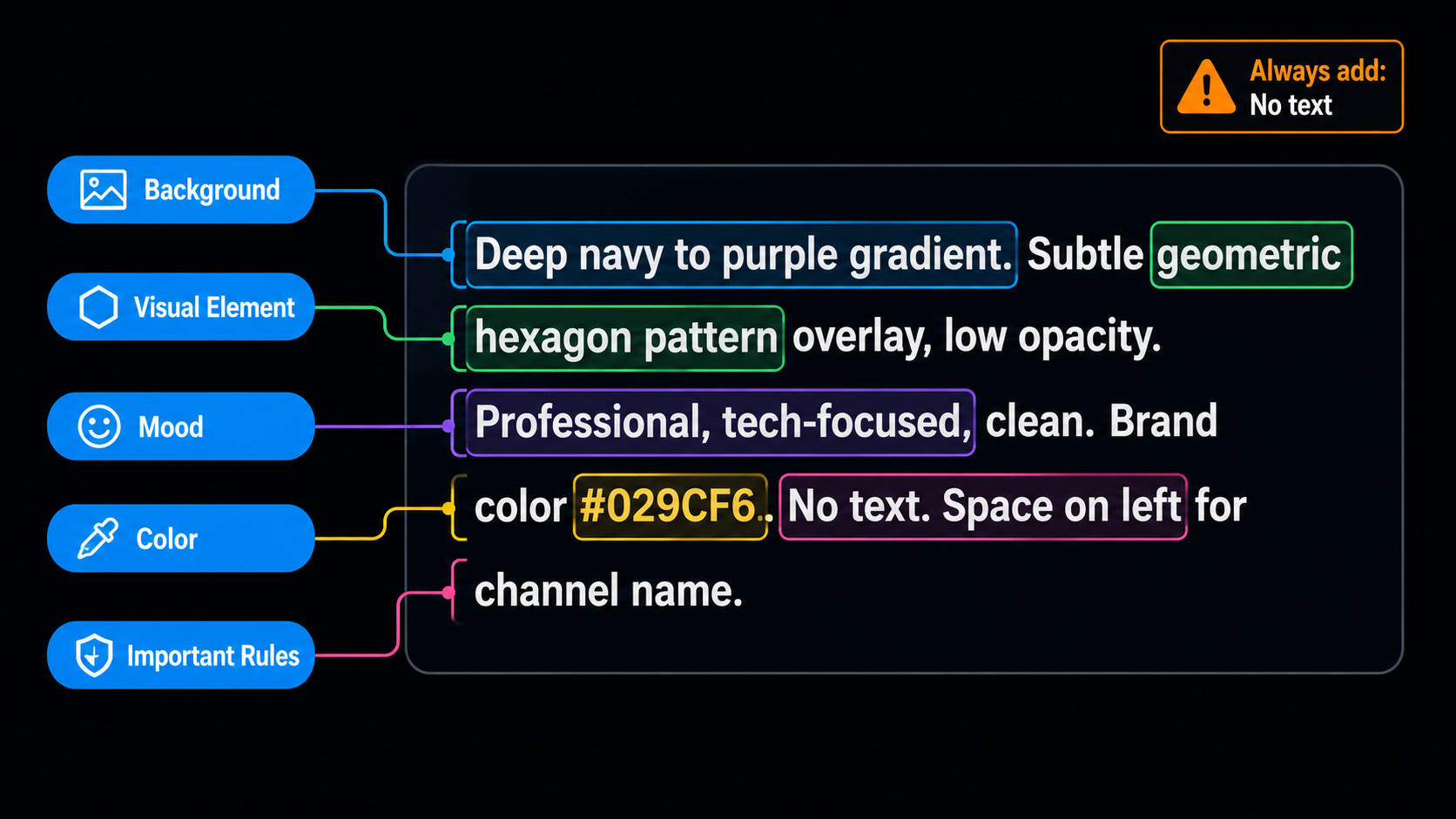
Social media banner AI prompts need to describe the visual aesthetics, not the text content. Text and logos are added in the next step — do not describe text or your brand name in the AI generation prompt, because the model will generate it as part of the image rather than as editable elements.
The formula that works:
| Element | What to Include | Example |
|---|---|---|
| Background style | Gradient, solid colour, abstract pattern, photography | “Deep navy to purple gradient, left to right” |
| Visual elements | What shapes, objects, or illustrations appear | “Subtle geometric hexagon pattern overlay, low opacity” |
| Mood and tone | The feeling the banner should convey | “Professional, tech-focused, clean” |
| Colour palette | Your brand colours or a colour mood | “Brand colours: electric blue #029CF6 and warm cream #F5EFE3” |
| What to avoid | Elements that should not appear | “No faces, no text, no stock photo style” |
Example prompts by creator type:
Add Text and Brand Elements
After the AI generates your background, add your text and logos in the overlay editor inside Social Banner Studio.
Text Placement Rules by Platform
| Platform | Where to Place Text | Where to Avoid |
|---|---|---|
| YouTube Channel Art | Inside the 1546 × 423px safe zone centre. Keep it horizontally centred. | Outside the safe zone — will be cropped on mobile/TV |
| LinkedIn Personal | Right two-thirds of the banner, vertically centred | Bottom-left corner (profile photo overlaps), bottom strip generally |
| X Header | Right side, vertically centred. Keep away from bottom-left. | Bottom-left quadrant (profile photo covers this) |
| Facebook Cover | Centre-right, above the midpoint | Far left (profile photo) and bottom edge (cropped on mobile) |
| Instagram Highlight | Centre of the circle, simple icon or 2–3 words maximum | Corners — they are clipped by the circle crop |
Font Size for Banners
Banners are viewed at very different sizes depending on the device. Your YouTube channel art is displayed at roughly 2560px wide on a 4K TV and 1546px wide on a large desktop — but it is displayed at a narrow strip on a phone. Text that is readable at TV size may be completely illegible at mobile size.
Minimum font sizes that remain readable across devices:
- YouTube channel name: 80px minimum, 120px recommended
- YouTube tagline: 50px minimum
- LinkedIn banner text: 60px minimum (the banner is short, not wide)
- Facebook cover text: 50px minimum
Export at the Right Specifications
Export settings determine whether your banner looks sharp or blurry after the platform re-compresses it on upload.
Every social platform re-encodes your image when you upload it. If you upload at the minimum accepted size, the second compression pass produces visible quality loss — banding in gradients, blurry edges, pixelated text. Upload at the recommended resolution or higher, and the compression has more data to work with.
| Platform | Export Size | Format | Max File Size |
|---|---|---|---|
| YouTube Channel Art | 2560 × 1440px | PNG (sharpest) or JPG at 95%+ quality | 6 MB |
| LinkedIn Personal Banner | 1584 × 396px | PNG-24 for logos/transparency, JPG for photos | 8 MB |
| X Profile Header | 1500 × 500px | JPG or PNG | 5 MB |
| Facebook Cover | 851 × 315px | JPG (Facebook compresses PNG harder) | Varies |
| Instagram Highlight Cover | 1080 × 1080px | JPG or PNG | 30 MB |
Platform-Specific Walkthroughs
YouTube Channel Art
Most complex — three safe zonesYouTube displays your channel banner differently on desktop, mobile, and TV simultaneously. The same image needs to work at all three sizes. The safe zone system handles this by defining a central rectangle that is visible on all devices.
| Full banner size | 2560 × 1440px |
| TV display area | Full 2560 × 1440px |
| Desktop display | 2560 × 423px (horizontal strip) |
| Mobile display | 1546 × 423px (the safe zone centre) |
| Safe zone | 1546 × 423px centred in the full canvas |
Design rule: put your channel name, tagline, and upload schedule inside the 1546 × 423px safe zone. Use the outer areas for decorative background elements only — these will appear on TV but will be cropped on mobile.
LinkedIn Personal Banner
High professional impactThe LinkedIn personal banner is underused by most Indian creators and professionals. It is prime real estate — it is the first thing someone sees when they visit your profile. A well-designed banner communicates your niche, credibility, and personality before they have read a single word of your bio.
| Recommended size | 1584 × 396px (4:1 ratio) |
| Profile photo overlap | Bottom-left corner — avoid placing anything important here |
| Mobile crop | Roughly 3:1 — keep critical content in the central 1584 × 528px area |
| Format | PNG-24 for banners with text and logos |
A good LinkedIn banner tells your visitor in 2 seconds: who you are, what you do, and why your profile is worth reading. Include your name or role, your key value proposition, and a visual that matches your professional brand.
Instagram Highlight Covers
Brand consistency at a glanceHighlight covers are small and almost always viewed on mobile — typically at 64px diameter in the feed, slightly larger on the profile page. This means your design needs to be extremely simple. One icon, one bold word, or one clear visual element. Anything more complex becomes unreadable.
| Size to generate | 1080 × 1080px |
| Display size | ~64px circle in the feed |
| Safe area | Centre 600px diameter of the 1080 × 1080px canvas |
| Content rule | One icon or 1–3 word label maximum |
Most creators use a consistent background colour across all their highlight covers with a single icon per category. This creates the clean, professional look you see on established brand profiles.
Common AI Banner Maker Mistakes
| Mistake | What Happens | Fix |
|---|---|---|
| Generating text inside the AI image | Text is baked in and cannot be edited — every update requires a full regeneration | Always add “No text” to your banner prompt. Add text as a separate layer. |
| Using the wrong dimensions | Platform crops the image in unexpected places, especially on mobile | Select the platform first in Social Banner Studio — it sets dimensions automatically. |
| Ignoring safe zones | Text and logos get cropped on certain devices even though they look fine on your screen | Keep all important content inside the marked safe zone. |
| Exporting at minimum size | Platform re-compression causes visible blurring of text and logo edges | Always export at recommended size, not minimum. Use PNG for text-heavy banners. |
| Using the same banner across all platforms | Safe zone positions differ — what works on YouTube crops badly on LinkedIn | Generate platform-specific versions for each platform’s dimensions and safe zone. |
| Not testing on mobile after upload | Banner looks fine on desktop but has cropped content on phone | Always check your profile on mobile after uploading a new banner. |
Integrating Banners Into Your Wider Brand Workflow
A banner does not exist in isolation. It needs to feel visually connected to your thumbnails, Reels intros, and profile photo. The fastest way to build this connection is to pick two brand colours and one font and use them consistently across all your visual assets.
For creators using the full AIClips workflow: generate your banner first, then use the same colour palette and visual language when generating Seedance 2.0 video prompts, ProductShot AI product images, and AI Content thumbnails. A consistent colour palette across all your content is more recognisable at a glance than any logo design.
The ProductShot AI guide covers how to apply consistent brand visual language to product photography. And the Script to Reel workflow guide shows how banner assets connect to the broader content creation process.
Frequently Asked Questions
What size should a YouTube channel banner be in 2026?
What is the best LinkedIn banner size in 2026?
Can I use AIClips to create banner with AI for free?
How do I make my banner look the same on mobile and desktop?
Does Social Banner Studio support Hindi text in banners?
Create Your First Banner on AIClips
AI banner maker with platform-specific dimensions and safe zones built in. Starts at ₹349/month.
Open AIClips Social Banner Studio →